Listening to your customers is the key to growing a successful business! Setting up the feedback feature on eMenu AI is quick, simple, and helps you gather valuable insights directly from your digital menu. Follow these 3 easy steps to activate it:
*This smart link automatically redirects you to the Apple App Store, Google Play, or Web App based on your device.
1 Step 1: Access Your Settings
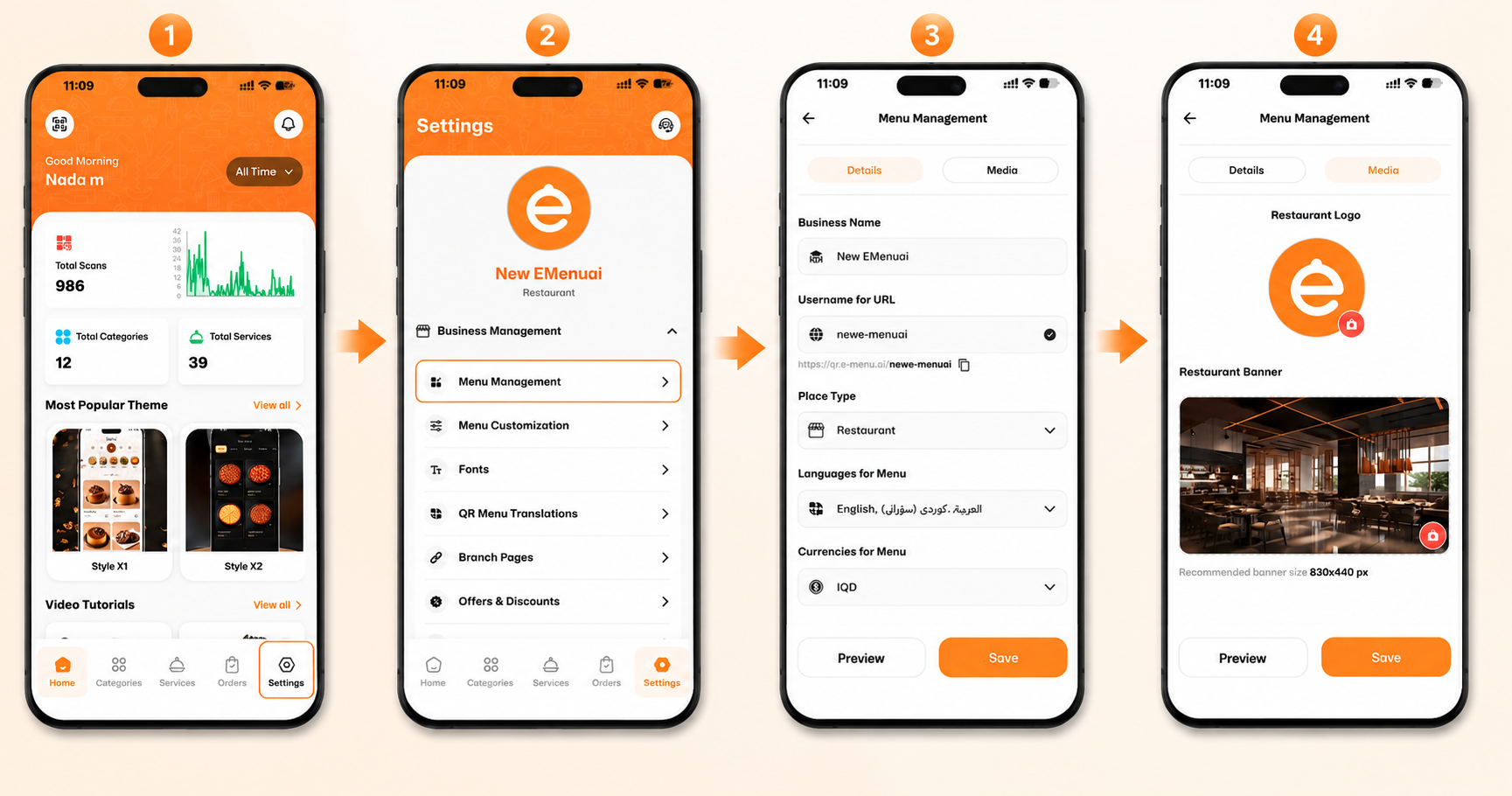
First, open your eMenu AI dashboard and look at the navigation menu at the bottom of your screen.
Tap on the Settings icon (the gear symbol located at the bottom right corner).
2 Step 2: Turn on the Feedback Feature
Next, you will need to activate the feature in your business settings.
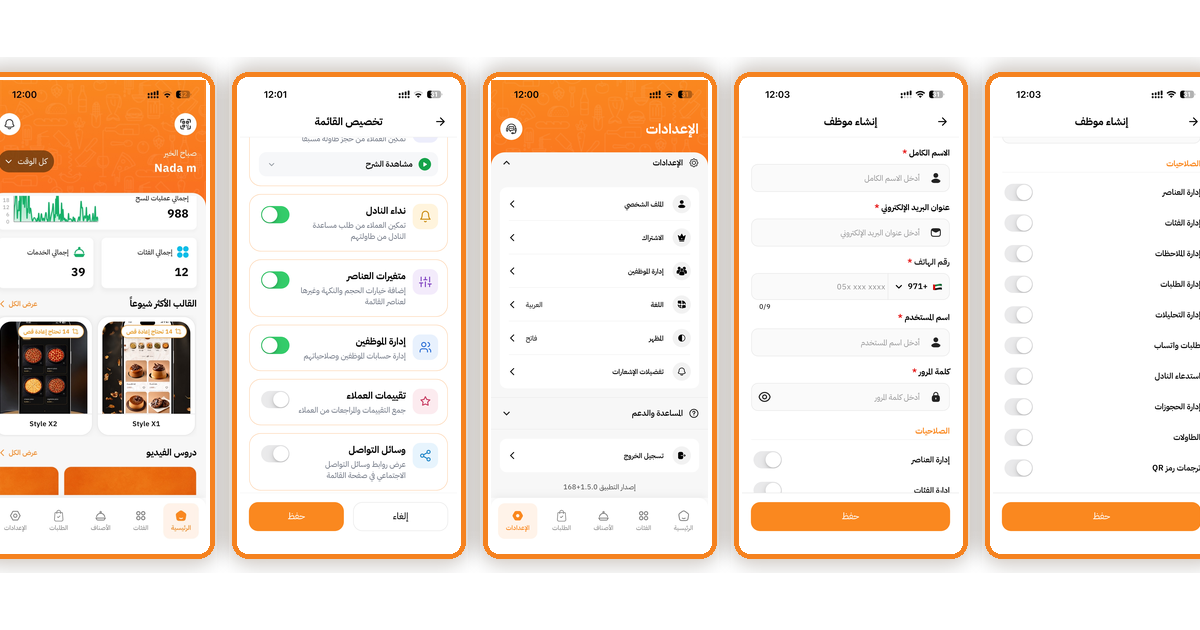
Under the Business Management section, tap on Menu Management / Menu Customization.
Scroll down until you see the Customer Feedback option.
Toggle the switch to the ON (green) position to collect ratings and reviews from customers.
Important: Don't forget to tap the orange Save button at the bottom!
3 Step 3: Let Customers Share Their Experience
Now it’s time to see it in action! Once activated, your digital menu will automatically update:
A new Leave Feedback button will appear on your customized menu page.
When customers click it, they can use a 5-star system to rate your Staff, Service, Hygiene, and Experience.
They can also leave their phone number and a personalized message for your management team.
🎥 Watch the Registration Tutorial
Need a visual guide? Watch this quick video to see How to Enable Customer Feedback on the eMenu AI App: A Step-by-Step Guide
🎉 Congratulations!
Your feedback feature is successfully activated. You are now ready to gather valuable customer insights, improve your service, and revolutionize your business with eMenu AI!