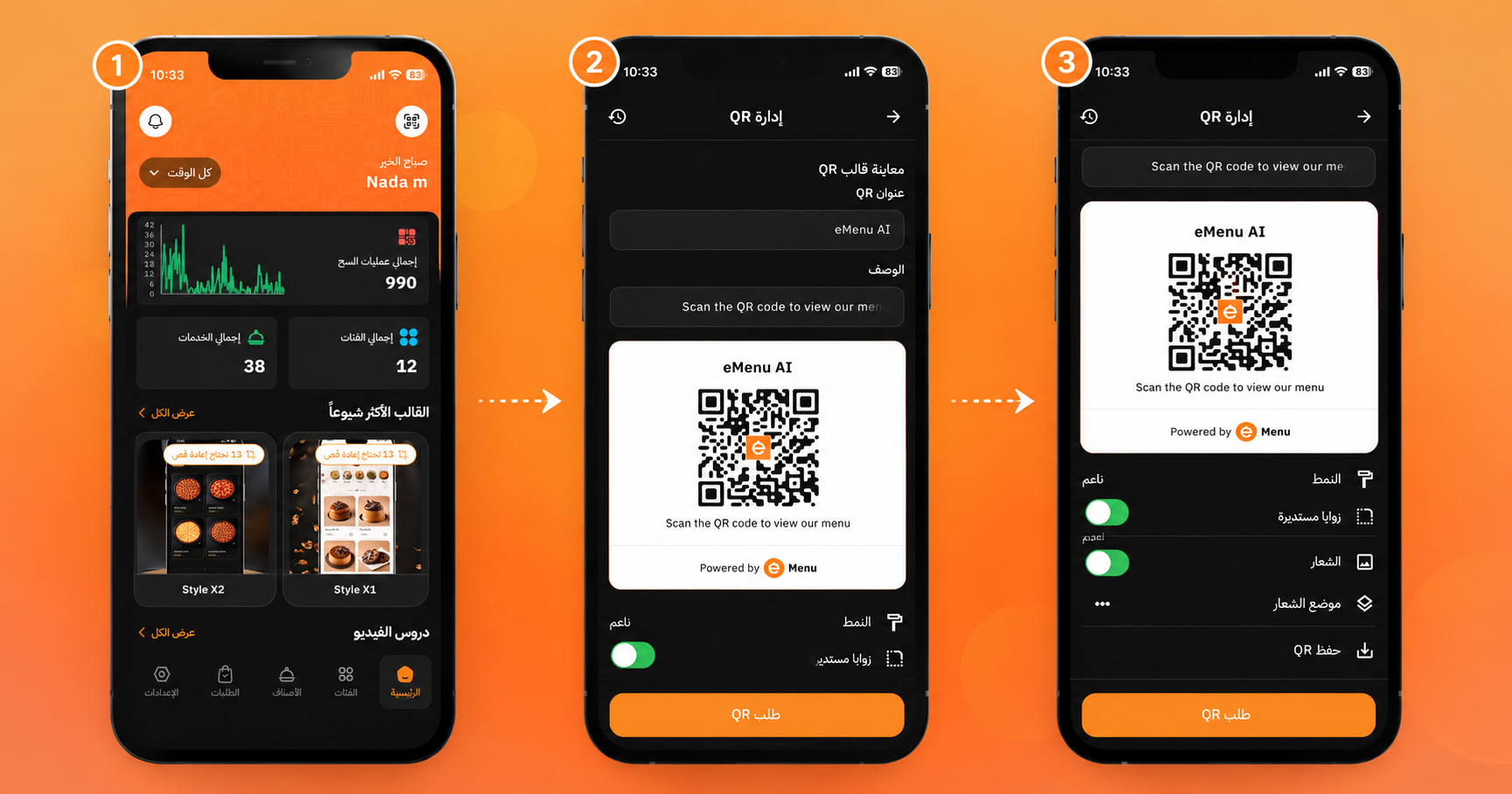
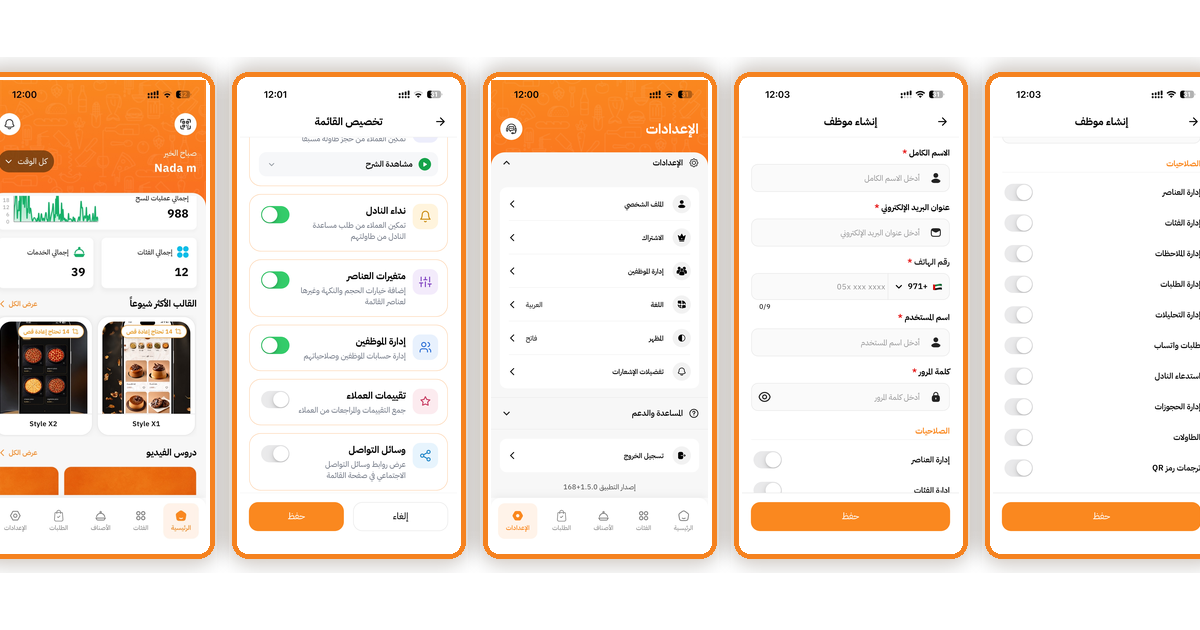
Welcome to seamless customer ordering! Setting up the WhatsApp ordering feature on your eMenu AI app is a fantastic way to streamline your deliveries and takeaways. It only takes a few taps. Follow these simple steps based on the image.png workflow to get started:
Make sure you are logged into your restaurant or business dashboard.
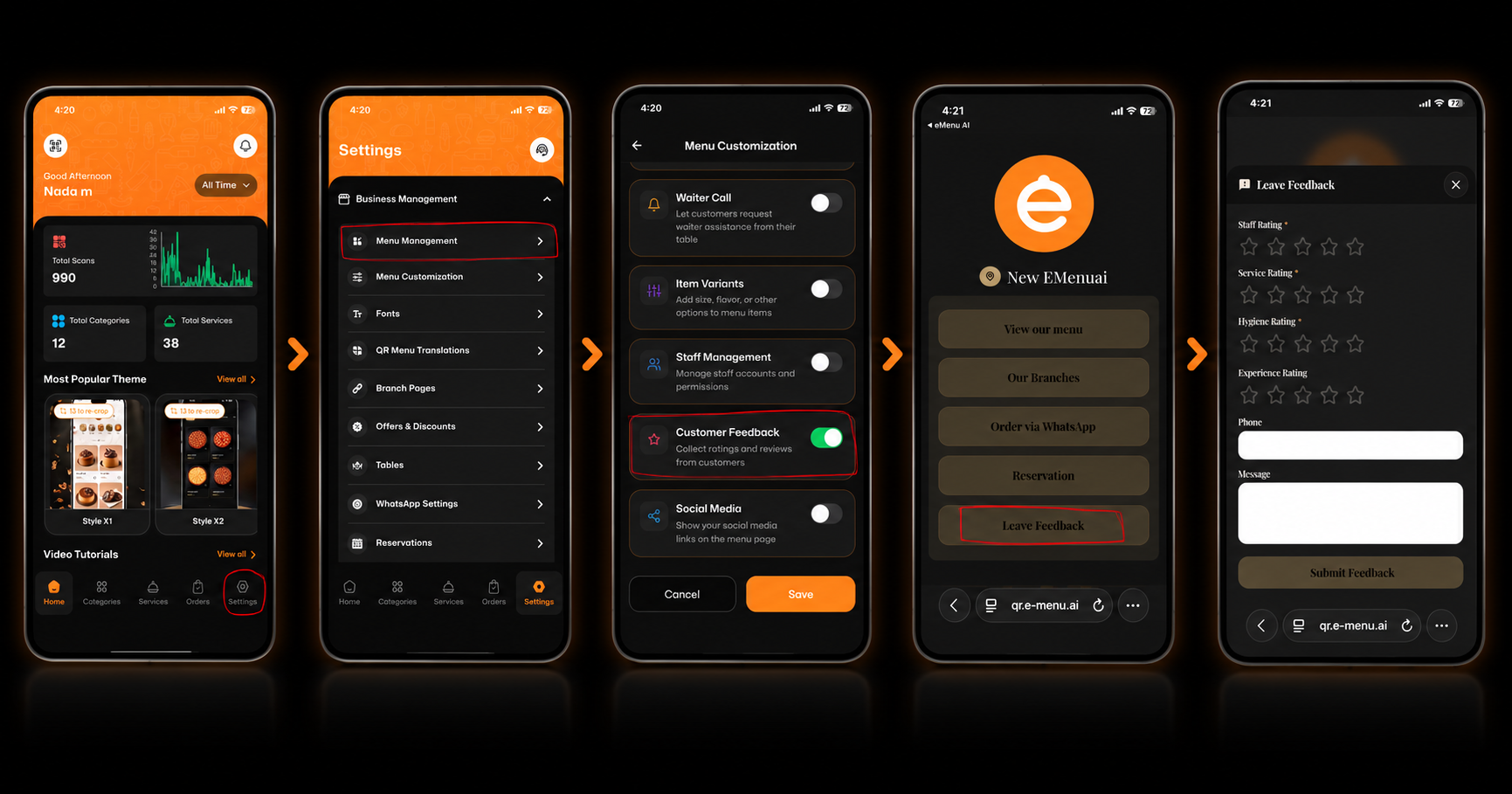
Step 1: Navigate to Settings
From your main dashboard, look at the bottom navigation bar and tap on the Settings icon (located in the bottom right corner).
Step 2: Access Menu Customization
Inside the Settings menu, scroll down to the "Business Management" section and tap on Menu Customization.
3️⃣ Step 3: Enable WhatsApp Ordering
On the Menu Customization screen, scroll until you find the WhatsApp Ordering option. Tap the toggle switch to turn it on (it will turn green). Remember to tap Save at the bottom of the screen!
Steps 4 and 5: Configure Your WhatsApp Details
Next, you will be taken to the WhatsApp Settings page to customize how you receive orders. Please make sure to configure:
Your Phone Number: Enter your dedicated WhatsApp number (including the country code) to receive orders.
Minimum Order Value: Set the cart total required before a customer can submit an order.
Form Field Configuration: Choose exactly what information your customers need to fill out (such as Full Name, Phone, Email, and Address). You can set these as "Enabled" and "Required."
Step 6: Get Your WhatsApp Order Link
Finally, head over to the QR Code Creation section. Here, you will find your dedicated WhatsApp Order Link. Tap the share or copy icon next to it. You can now share this link directly with your customers or let them scan your QR code to order!
🎥 Watch the Configuration Tutorial
Need a visual guide? You can find quick video tutorials directly under the settings in your app to see exactly how it’s done!
🎉 Congratulations!
Your setup is complete! You are now ready to receive orders directly to your WhatsApp and provide a faster, more personalized experience for your customers.