Welcome to the future of dining and business management! Staying updated with your restaurant's activities is crucial for a smooth operation. Customizing your notifications on eMenu AI is quick, simple, and takes just a few taps. Follow these 3 easy steps to get your alerts set up:
*This smart link automatically redirects you to the Apple App Store, Google Play, or Web App based on your device.
1️⃣ Step 1: Navigate to Settings
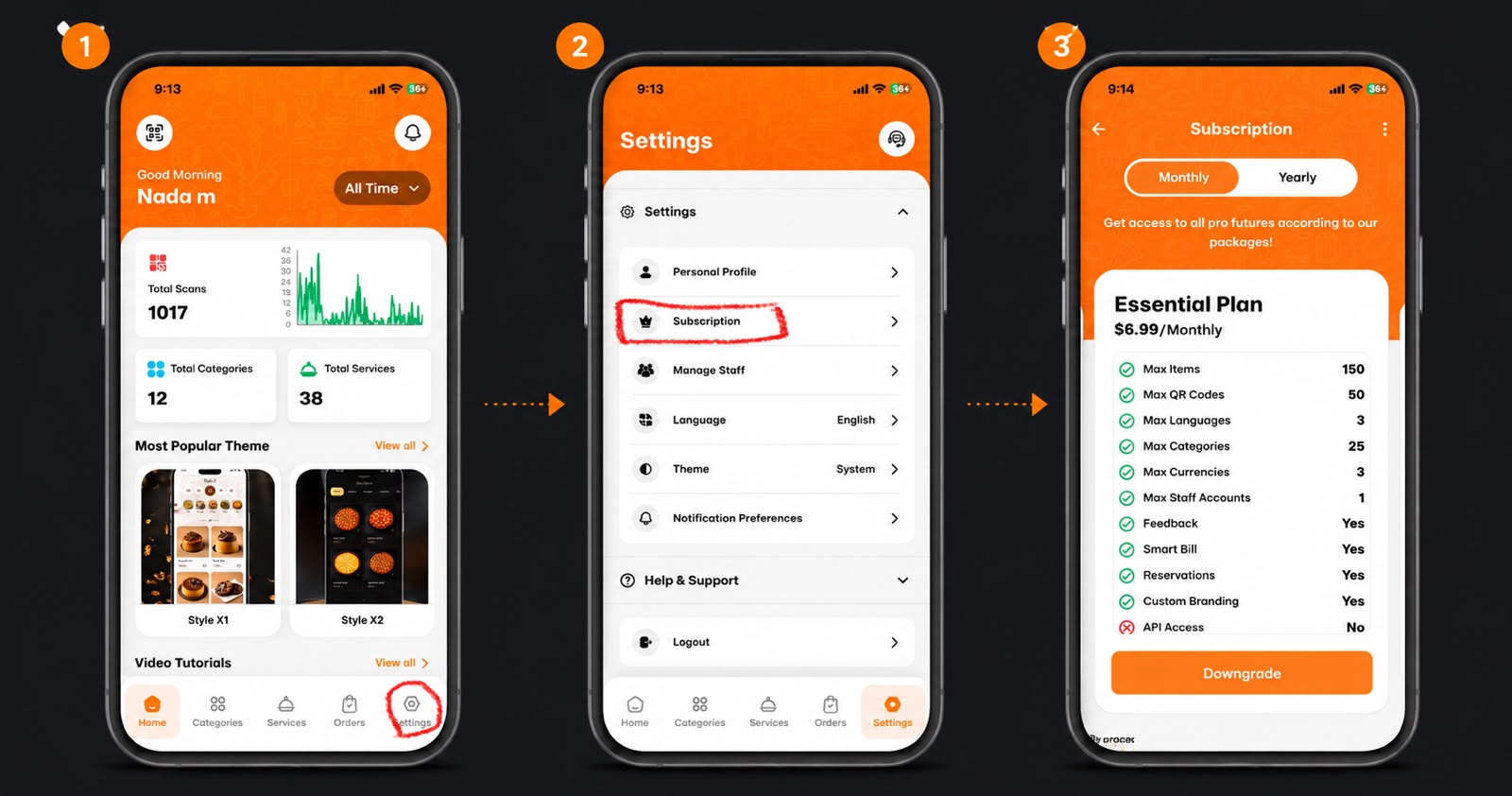
First, open the eMenu AI app. From your home dashboard, locate the bottom navigation bar and tap on the Settings icon (the gear symbol) in the bottom right corner.
2️⃣ Step 2: Open Notification Preferences
Next, you will see your settings menu. Scroll down the list and tap on Notification Preferences (highlighted with a bell icon) to access your alert controls.
3️⃣ Step 3: Customize Your Alerts
Now it’s time to make it yours! Customize how and when you receive alerts by toggling the switches for:
New Orders: Know instantly when a customer places an order.
Waiter Calls: Get notified when a table needs assistance.
Reservations: Keep track of new or updated bookings.
Payments: Receive smart bill updates and payment confirmations.
Bonus: Scroll down to Order Notifications to choose your preferred alert sound (like Attention Ring, Urgent Order, or Loud Chime).
🎉 Congratulations!
Your notification preferences are now successfully set. You are perfectly equipped to stay on top of every customer interaction and revolutionize your service with eMenu AI!