Enhance your customer service and streamline your restaurant operations! Setting up the Waiter Call feature on eMenu AI takes just a few taps. Follow these simple steps to get started:
Make sure you are logged into your account and viewing your main dashboard.
Step 1: Enable the Feature in Settings
First, you need to turn the feature on from your dashboard:
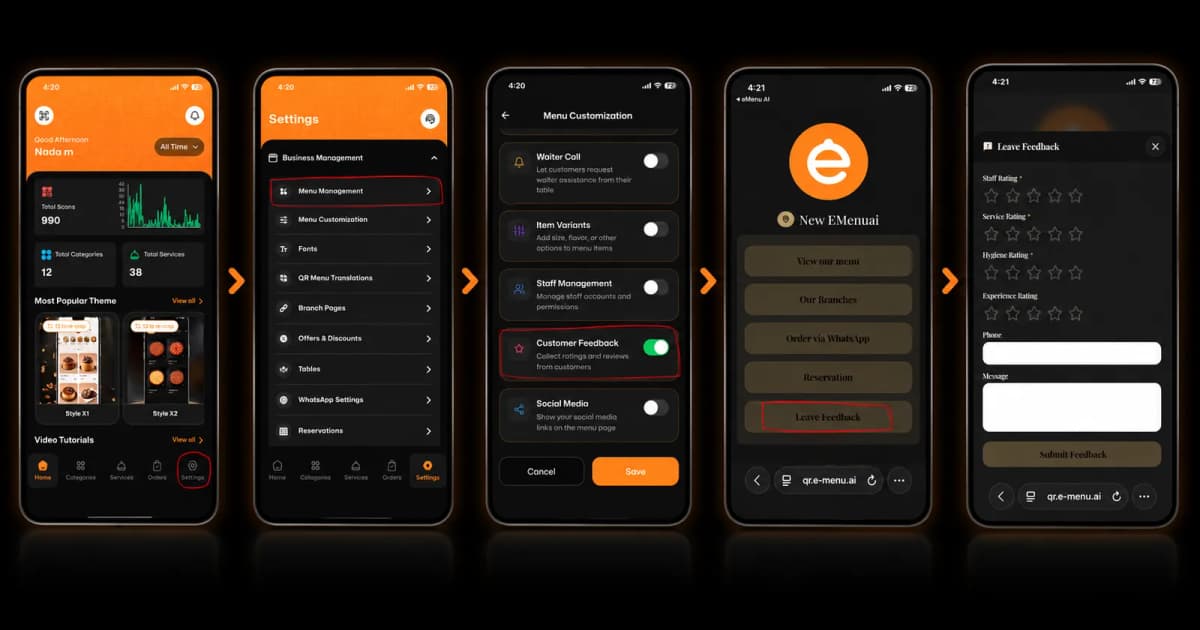
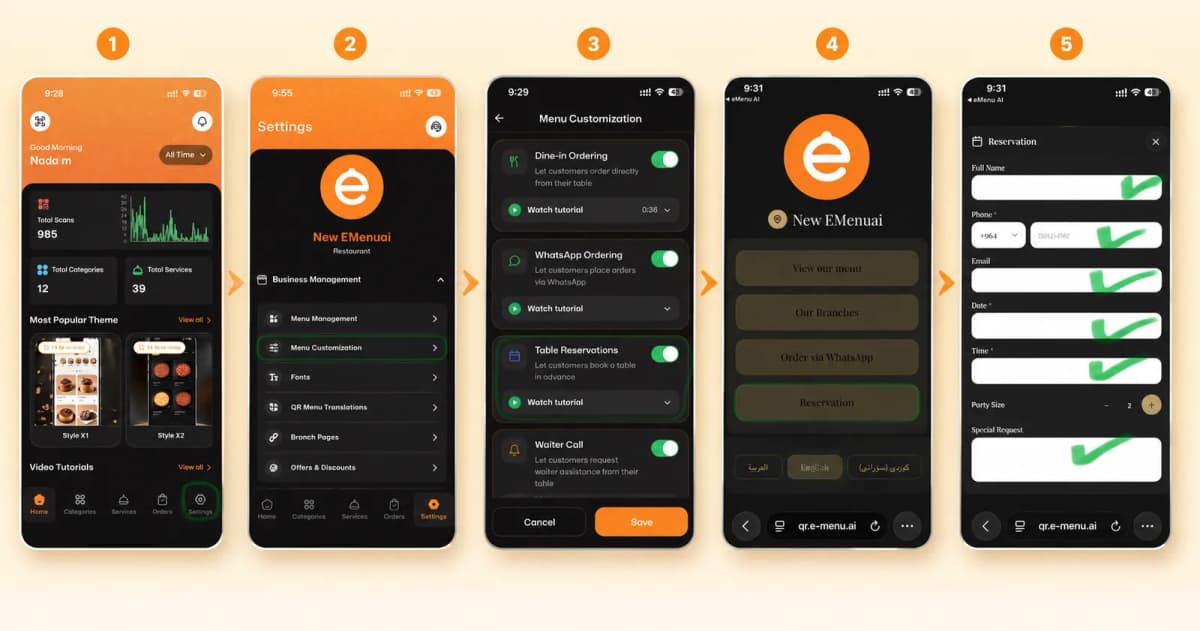
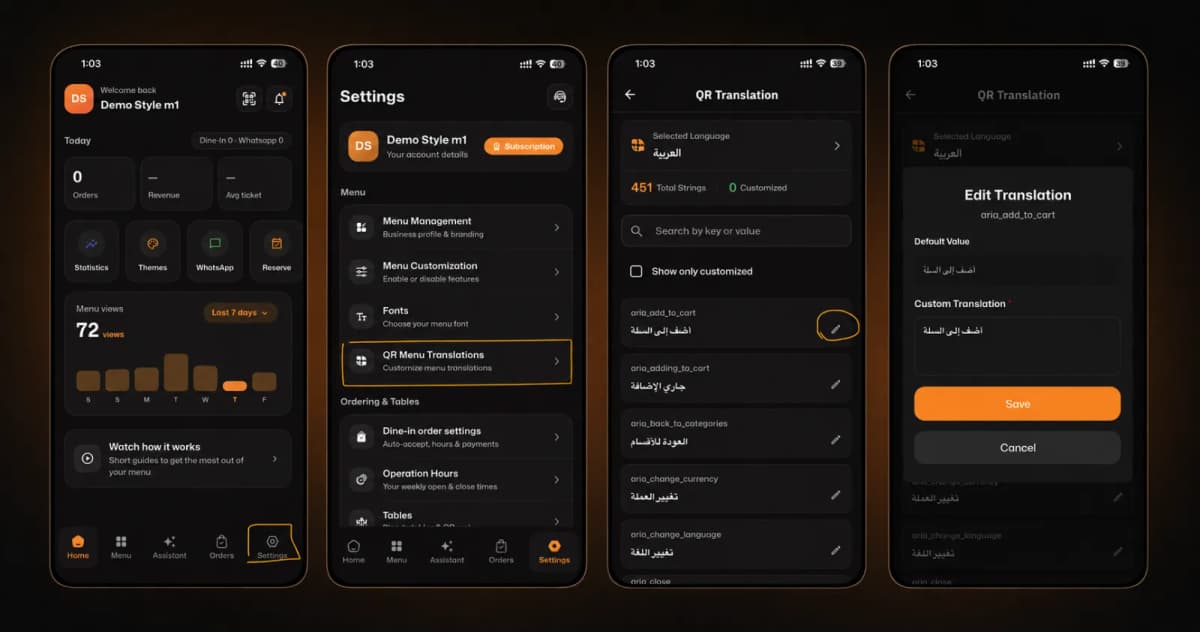
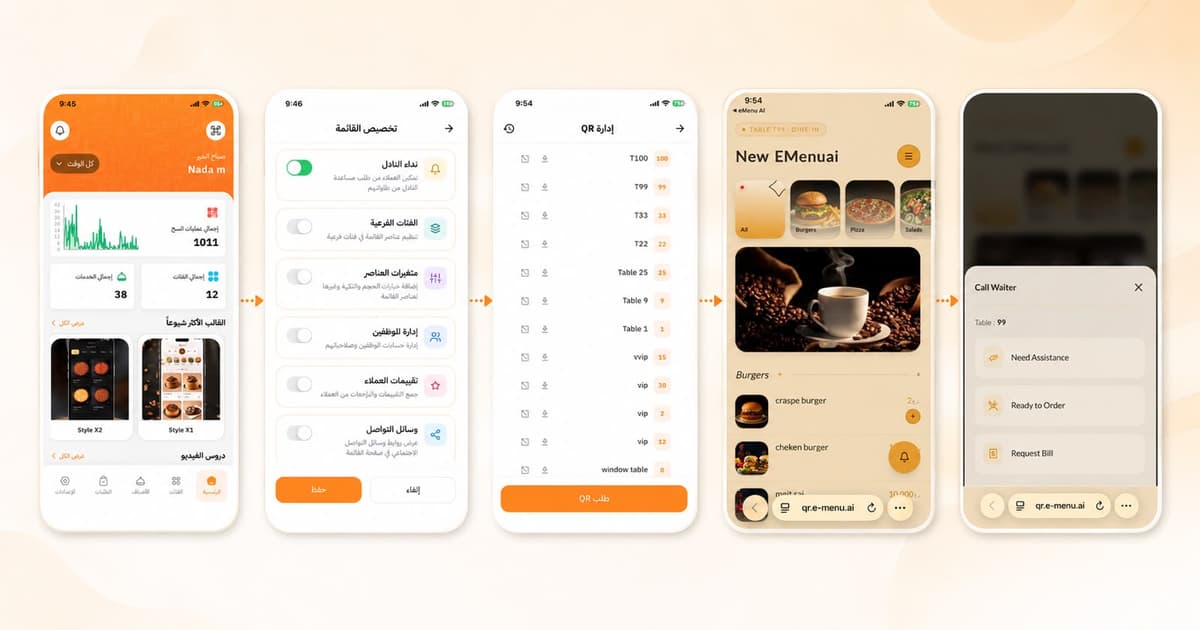
Go to the Settings tab on your app homepage.
Tap on Menu Customization.
Find the Waiter Call option, switch the toggle to ON (green), and hit Save.
Step 2: Customer Access
When your customers scan their table's QR code to view the menu, they will now see a floating Bell Icon on the bottom right of their screen.
Step 3: Making a Request
Whenever a customer needs something, they can simply tap the bell icon and select their specific request:
🤝 Need Assistance
🍴 Ready to Order
🧾 Request Bill
Step 4: Instant Notifications
Your restaurant staff will instantly receive a push notification on their device (e.g., "Bill Requested - Table 100"), allowing them to respond quickly and efficiently!
🎥 Watch the Registration Tutorial
Need a visual guide? Watch this quick video to see How to Enable and Use the Waiter Call Feature on eMenu AI: A Step-by-Step Guide
🎉 Congratulations!
You've successfully activated the Waiter Call feature. Get ready to deliver a faster, more responsive dining experience!