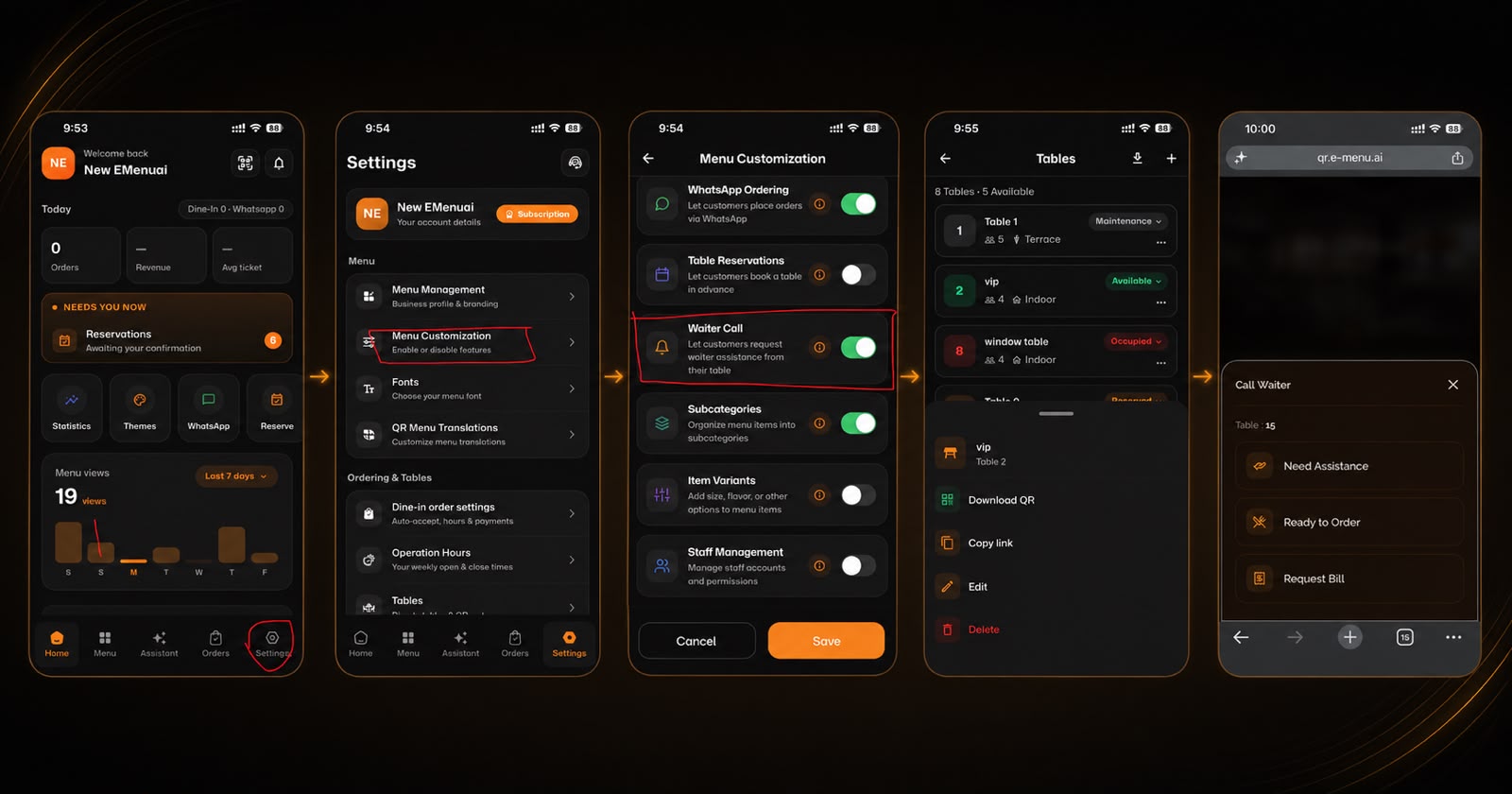
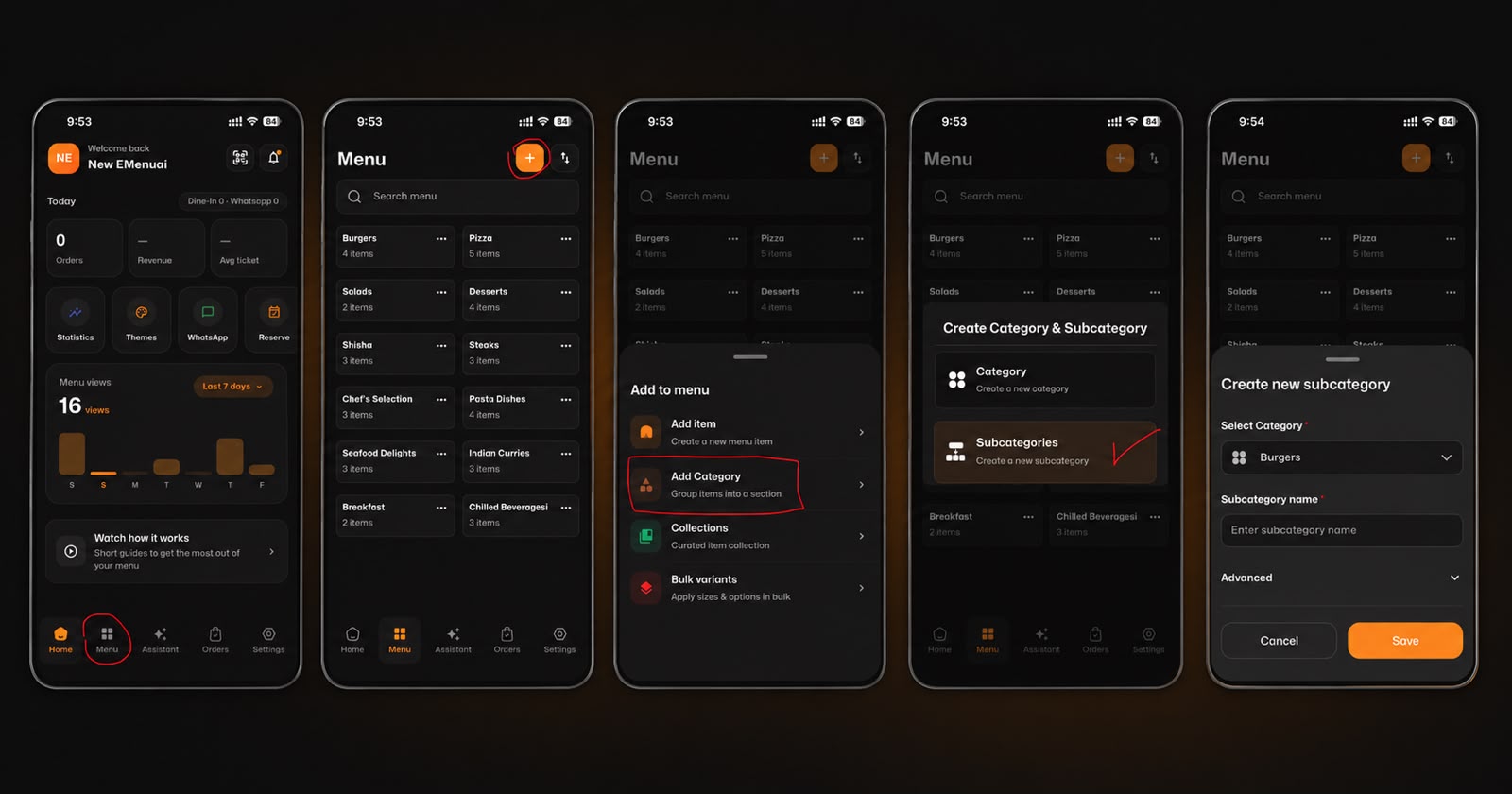
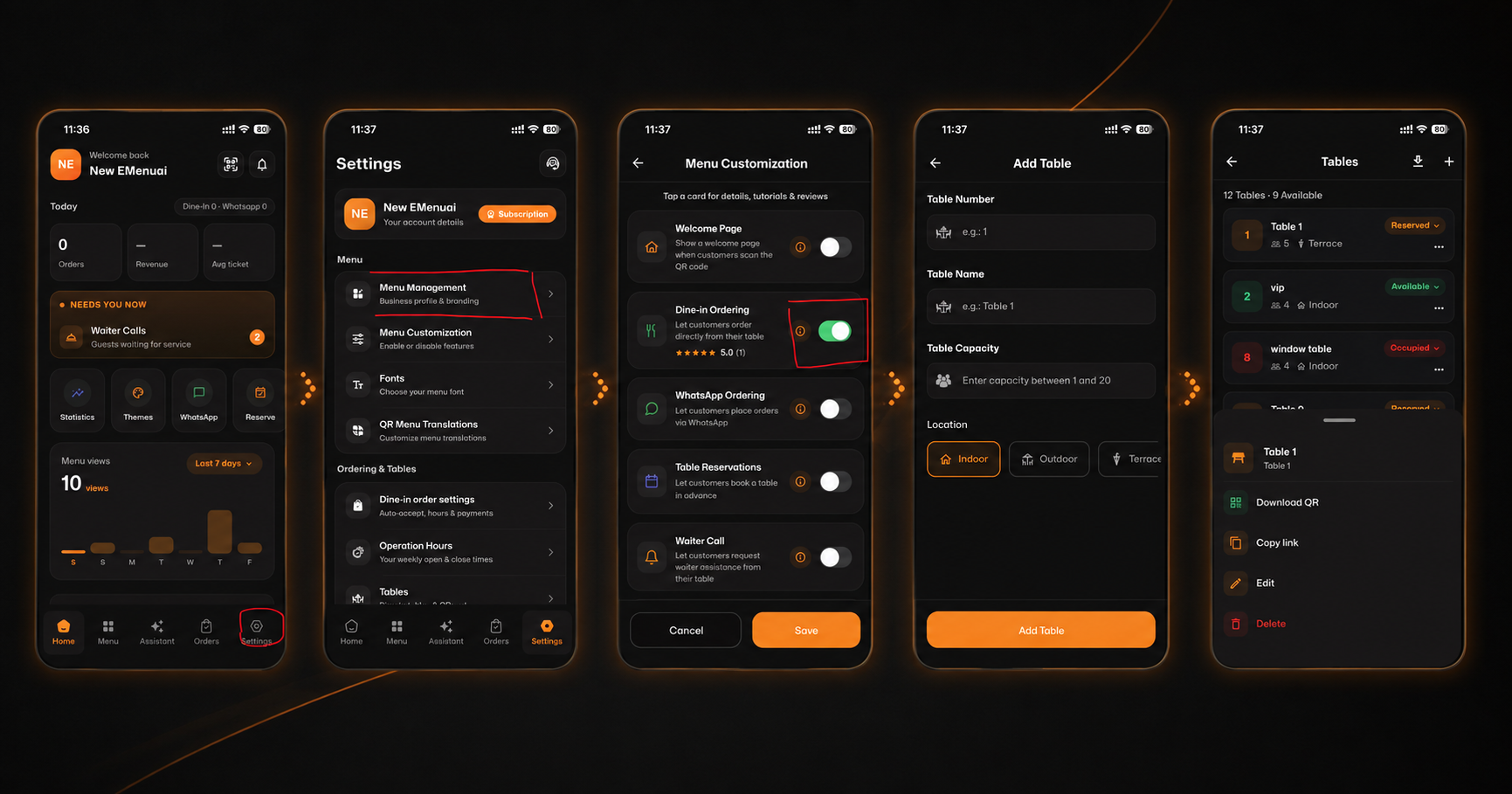
Welcome to better customer insights! Enabling the feedback feature on your eMenu AI app is quick, simple, and takes just a few seconds. Follow these 4 easy steps to get started based on image.png:
*This smart link automatically redirects you to the Apple App Store, Google Play, or Web App based on your device.
Step 1: Go to Settings
From your main dashboard, look at the bottom navigation bar and tap on the Settings icon (the gear icon on the bottom right).
Step 2: Select Menu Customization
Inside the Settings menu, scroll down slightly and tap on Menu Customization (Enable or disable features).
Step 3: Enable Customer Feedback
In the customization list, find the Customer Feedback option. Toggle the switch to turn it ON (it will turn green) to collect ratings and reviews from customers. Don't forget to tap Save at the bottom!
Step 4: Start Collecting Reviews
That's it! Your customers will now see a "Leave Feedback" button on your digital menu, where they can rate your Staff, Service, Hygiene, and overall Experience, as well as leave custom messages.
🎉 Congratulations!
Your feedback feature is now active. You are ready to listen to your customers and elevate your business with eMenu AI!