Welcome to a smarter way to serve your guests! Activating the "Call Waiter" feature allows your customers to request assistance, place an order, or ask for the bill directly from their phones. Follow these easy steps to enable it:
*This smart link automatically redirects you to the Apple App Store, Google Play, or Web App based on your device.
⚙️ Step 1: Go to Settings
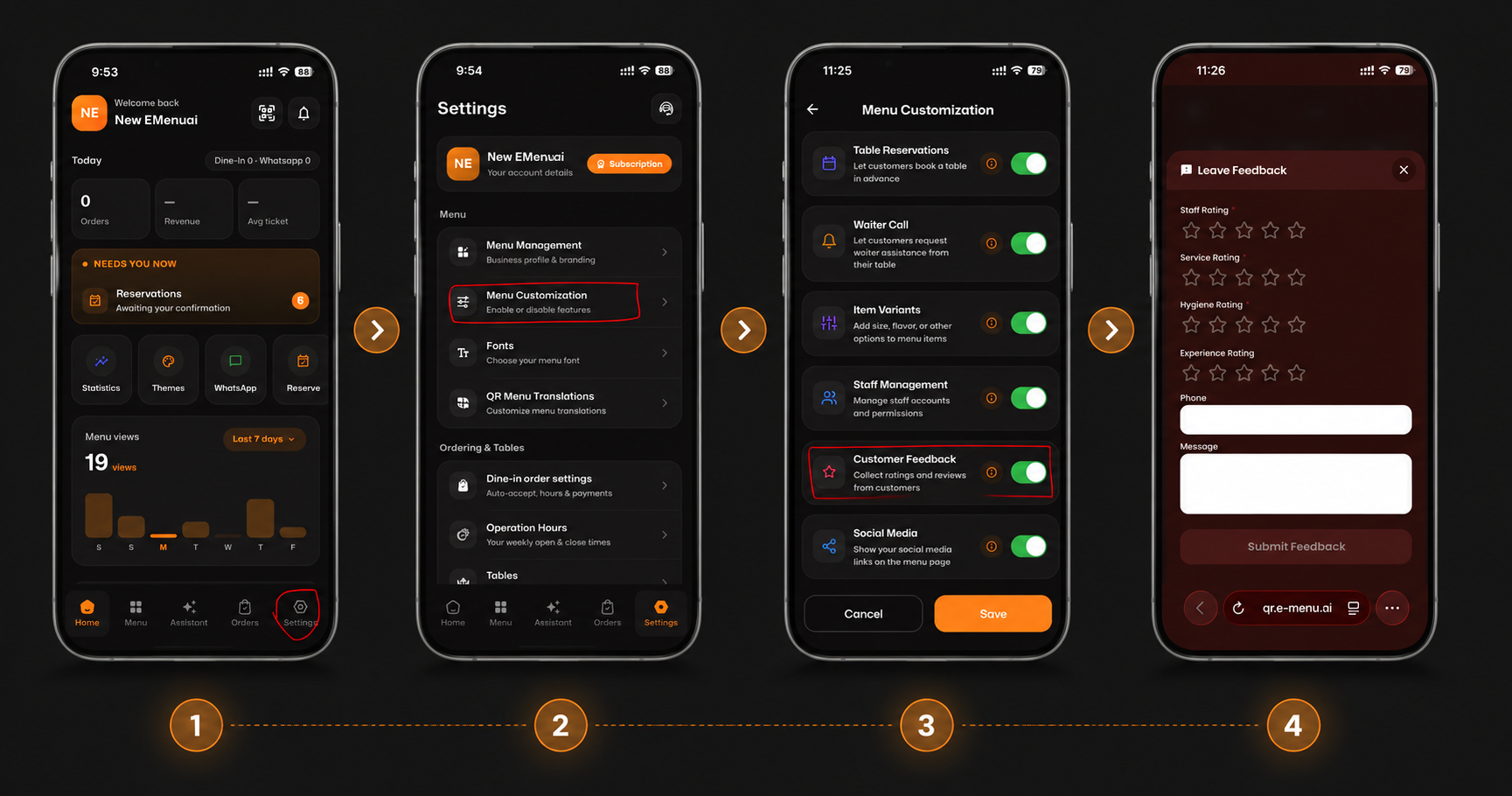
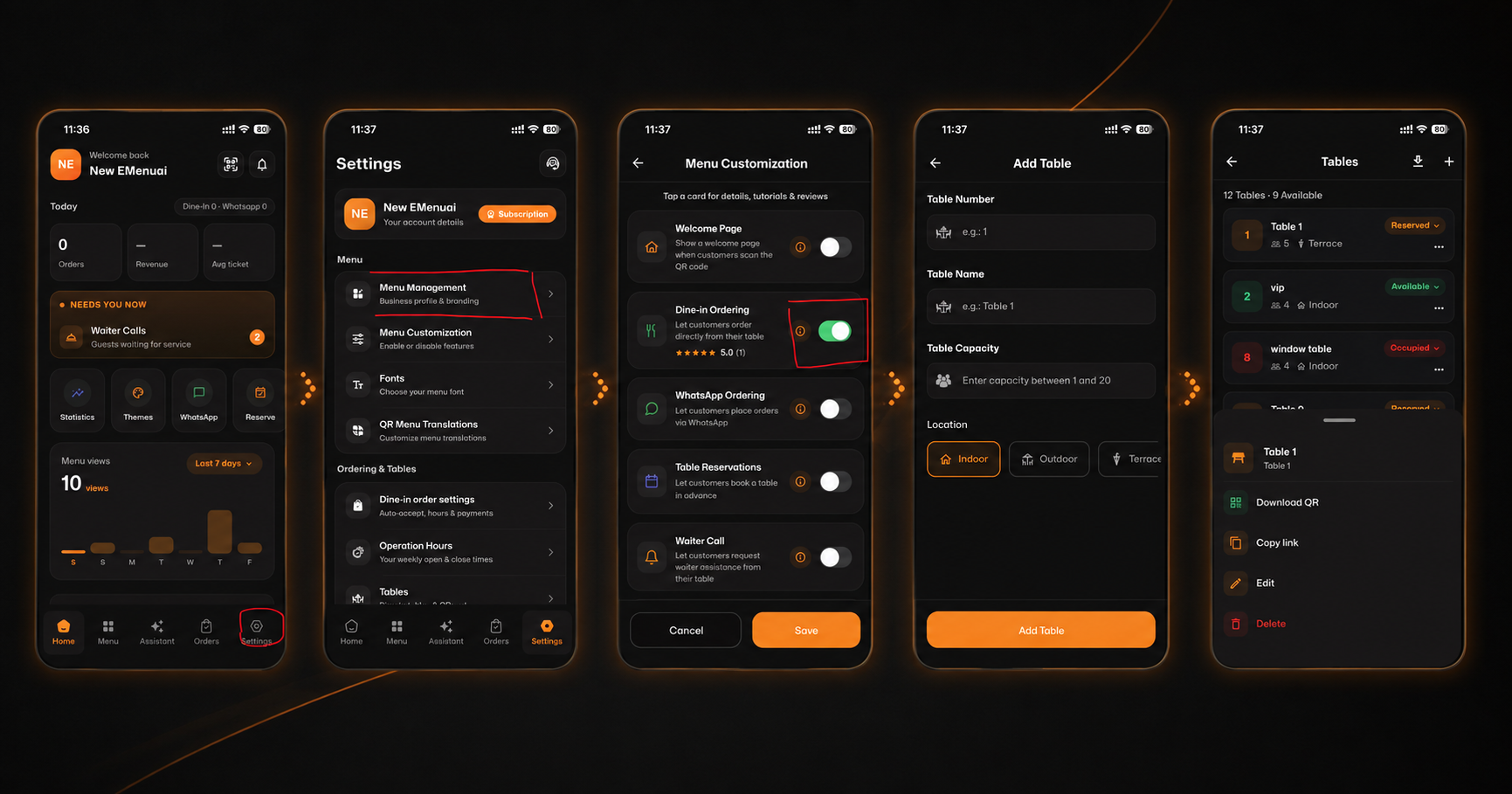
Open the eMenu AI app. On the bottom navigation bar, tap on the Settings icon located at the bottom right corner (as seen in image.png).
🎛️ Step 2: Access Menu Customization
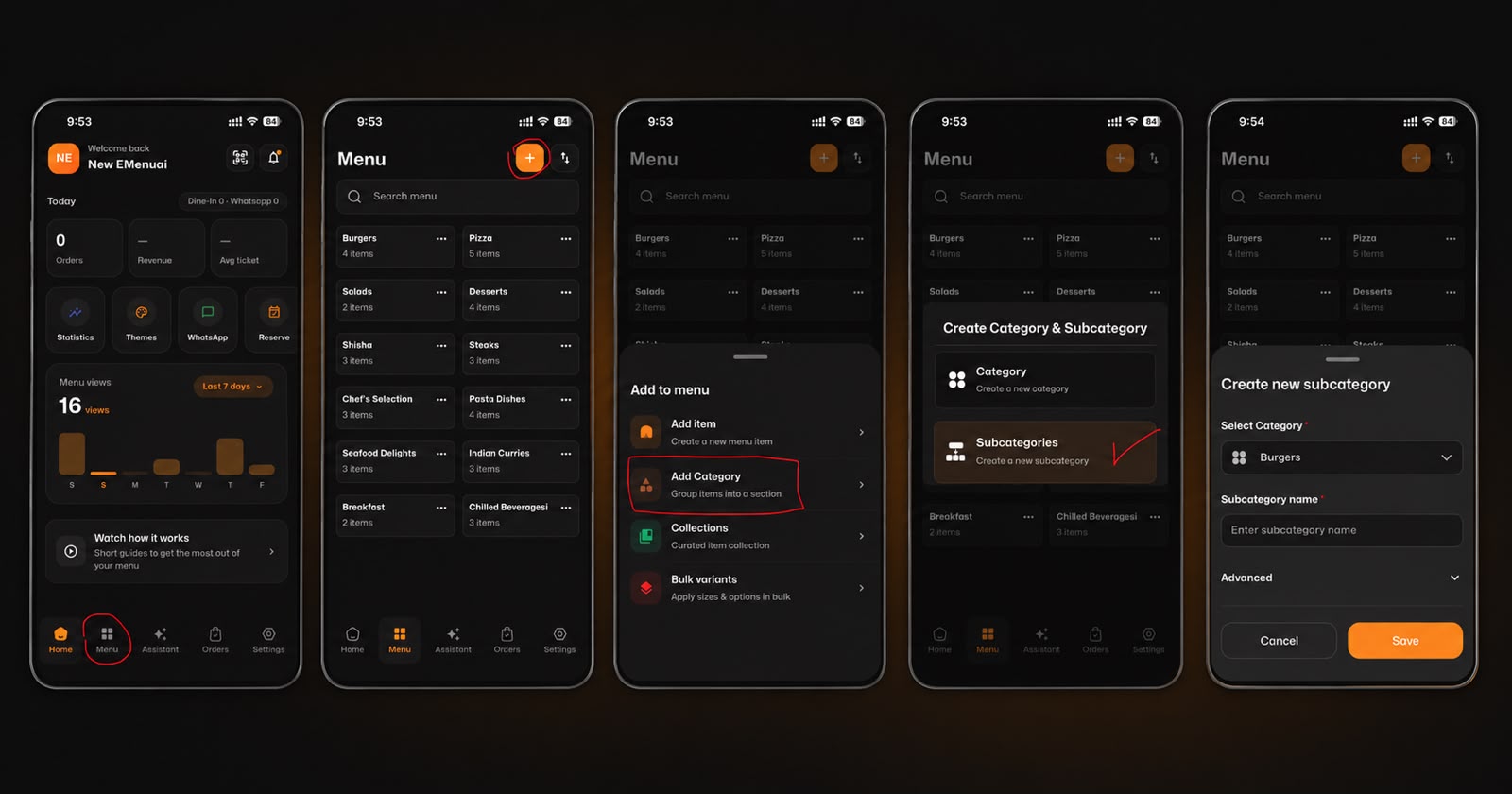
In your Settings menu, look for the Menu section and tap on Menu Customization to manage your active features (image_2.png).
🔔 Step 3: Enable the Waiter Call Feature
Scroll through the list until you find Waiter Call. Tap the toggle switch to turn it on (it will turn green). This allows customers to request waiter assistance right from their table (image_3.png).
📱 Step 4: Ready for Customers!
Once enabled, whenever your customers scan the QR code for their table (which you can manage and download in the Tables section, like in image_4.png), they will see a digital menu with a new "Call Waiter" option.
They can easily select (image_5.png):
Need Assistance
Ready to Order
Request Bill
🎉 Congratulations!
You are now ready to provide faster, smarter, and more efficient customer service with eMenu AI! 🚀