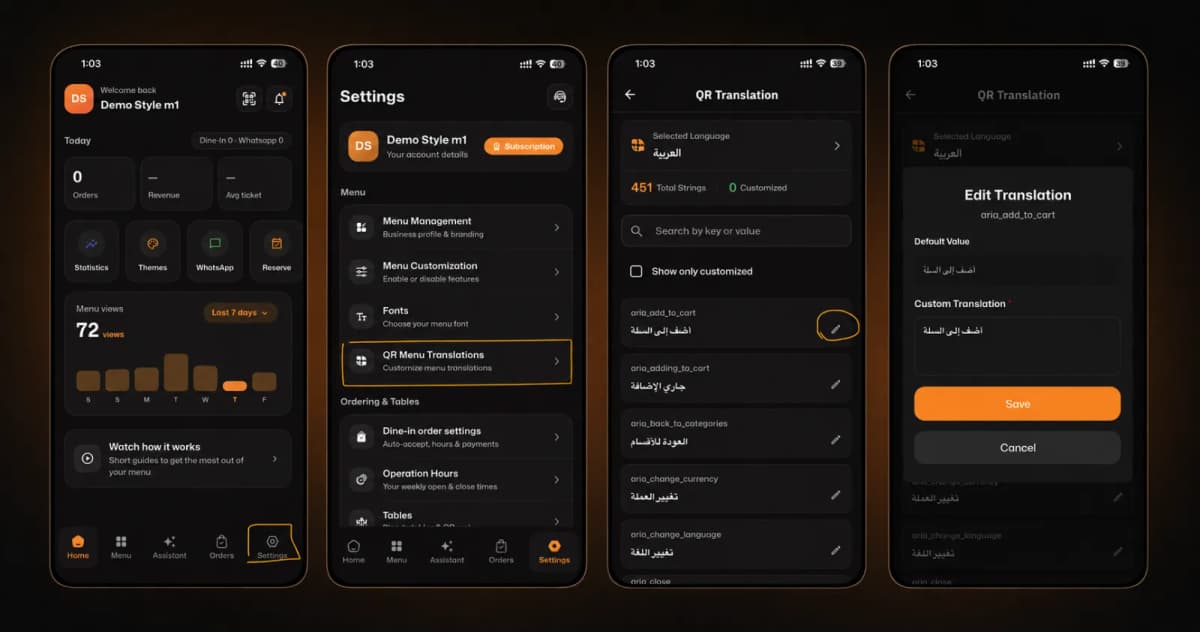
Welcome to the ultimate customization experience! Tailoring your digital menu's language to suit your customers is quick and simple. Follow these 4 easy steps to customize your translations:
*This smart link automatically redirects you to the Apple App Store, Google Play, or Web App based on your device.
Step 1: Go to Settings
Open the eMenu AI app. On the main home screen, locate and tap on the Settings icon situated at the bottom right corner.
Step 2: Access QR Menu Translations
Inside the Settings menu, look under the "Menu" section and tap on QR Menu Translations to manage your menu's languages.
Step 3: Select the Text to Edit
At the top, select your desired language (e.g., Arabic). Browse the list of words or use the search bar. Once you find the word you want to change (like "Add to cart"), tap the Pencil Icon ✏️ next to it.
Step 4: Add Custom Translation & Save
A pop-up window will appear showing the "Default Value". Simply type your new preferred text into the Custom Translation box and hit the orange Save button.
🎉 Congratulations!
Your custom translation is now live! You are ready to provide a perfectly localized experience for your customers with eMenu AI!