How to Manage Your Menu Profile and Branding on the eMenu AI App: A Step-by-Step Guide
Welcome back! Now that your account is set up, it’s time to customize your business profile, menu details, and branding. Follow these 4 easy steps to set up your digital menu:
*This smart link automatically redirects you to the Apple App Store, Google Play, or Web App based on your device.
Step 1: Go to Settings
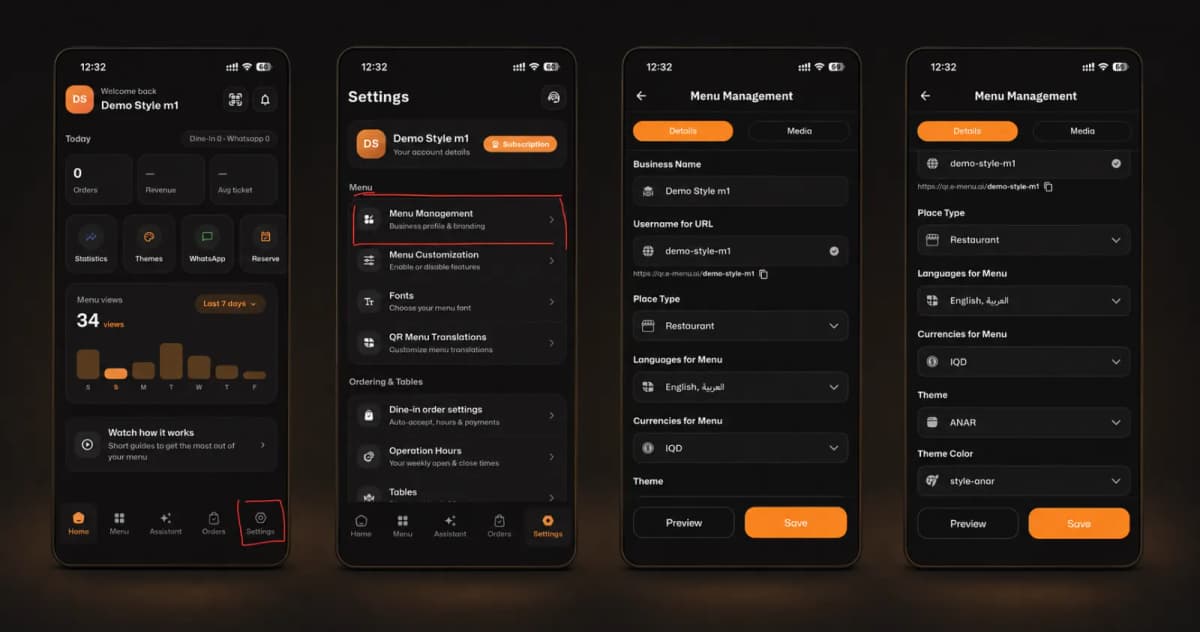
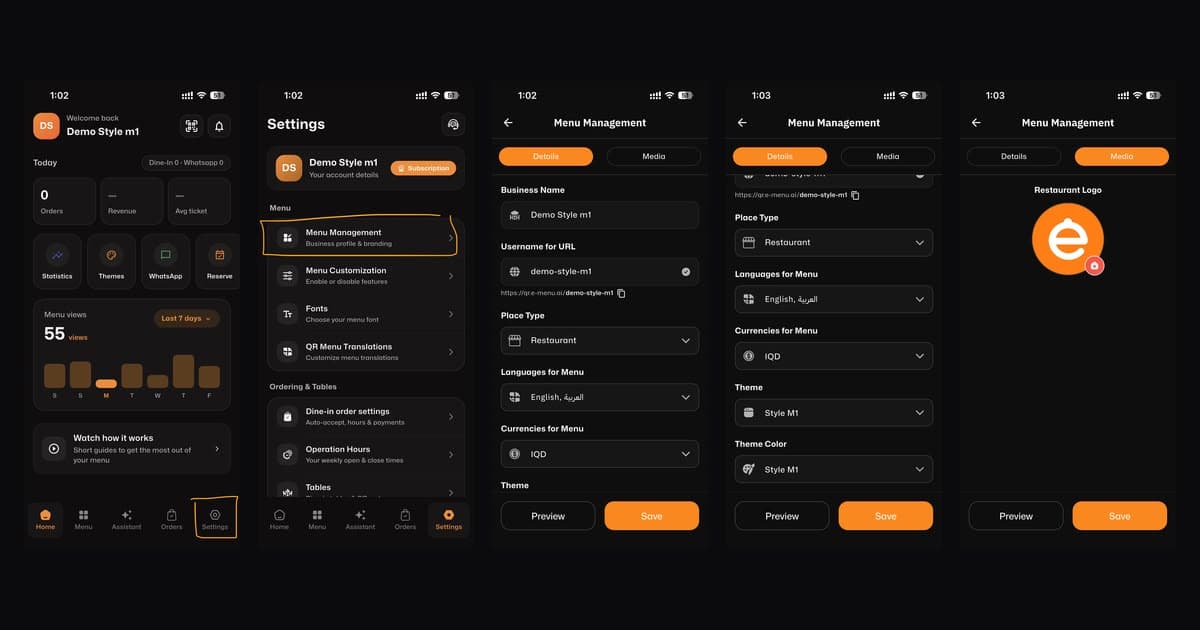
From your home dashboard, look at the bottom navigation bar and tap on the Settings icon (located at the bottom right corner).
Step 2: Open Menu Management
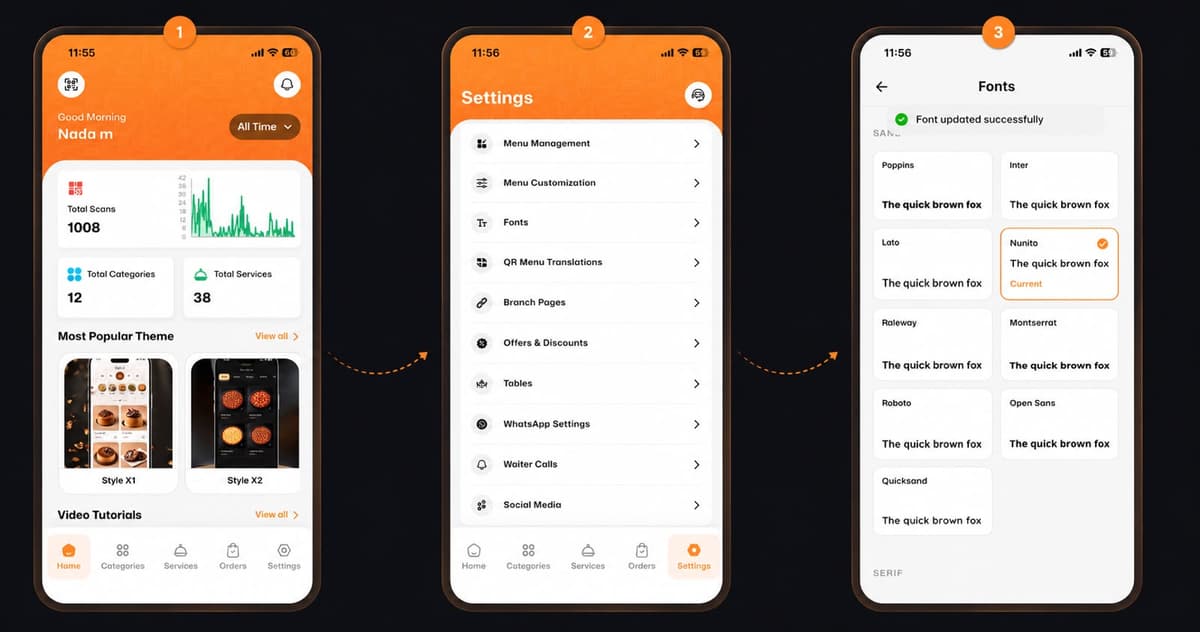
In the Settings menu, tap on Menu Management (Business profile & branding) to access your customization options.
Step 3: Update Your Details
Under the Details tab, you can set up all the important information for your menu:
Business Name: The name of your restaurant or café.
Username for URL: Create your unique digital menu link.
Place Type: Select your business type (e.g., Restaurant).
Languages for Menu: Choose the languages you want to offer (e.g., English, العربية).
Currencies for Menu: Set your local currency (e.g., IQD).
Theme & Theme Color: Pick a design style (like Style M1) that matches your brand.
Step 4: Upload Your Logo
Switch over to the Media tab. Here, you can tap on the Restaurant Logo to upload your business logo and make your menu stand out!
🎉 Congratulations!
Don't forget to tap the Save button at the bottom after making your changes. Your custom menu is now fully branded and ready for your customers!