Personalizing your digital menu's look and feel is quick and easy with eMenu AI! Choosing the right font helps match your menu to your unique brand identity. Follow these 3 simple steps to update your menu's typography:
Make sure you are logged into your account and viewing your main dashboard.
Step 1: Navigate to Settings
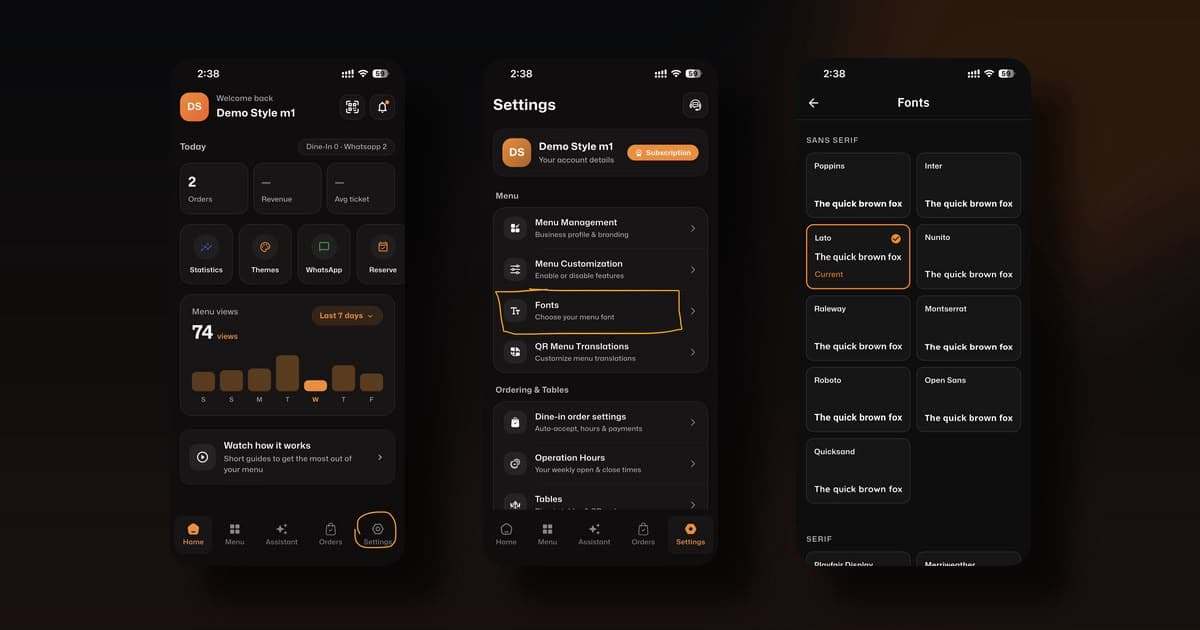
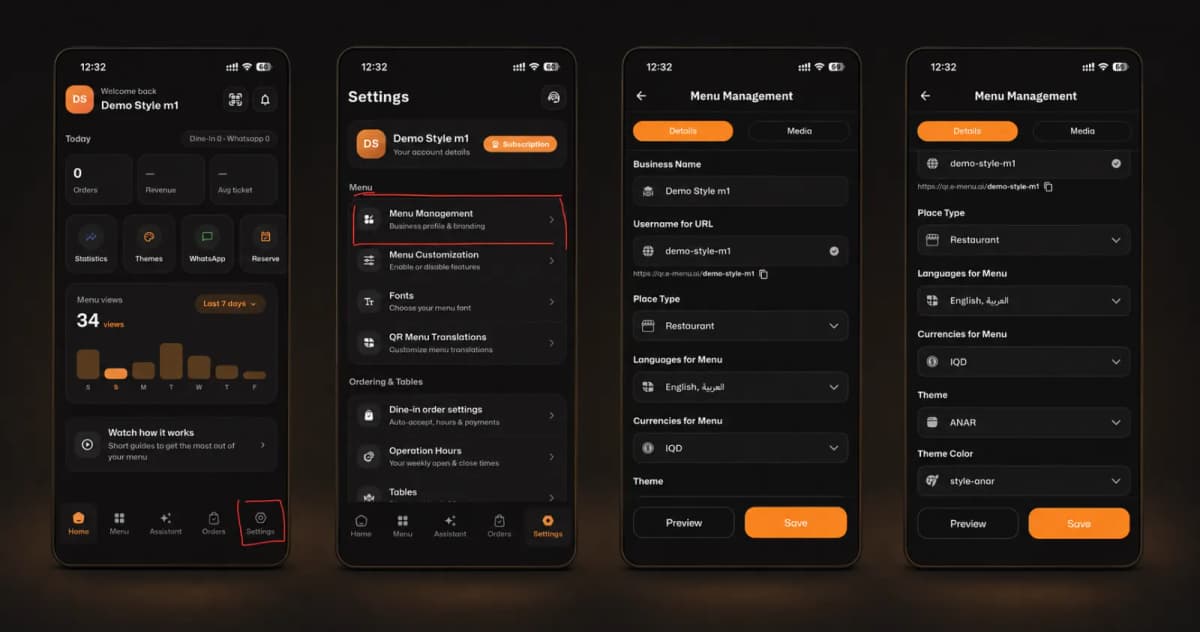
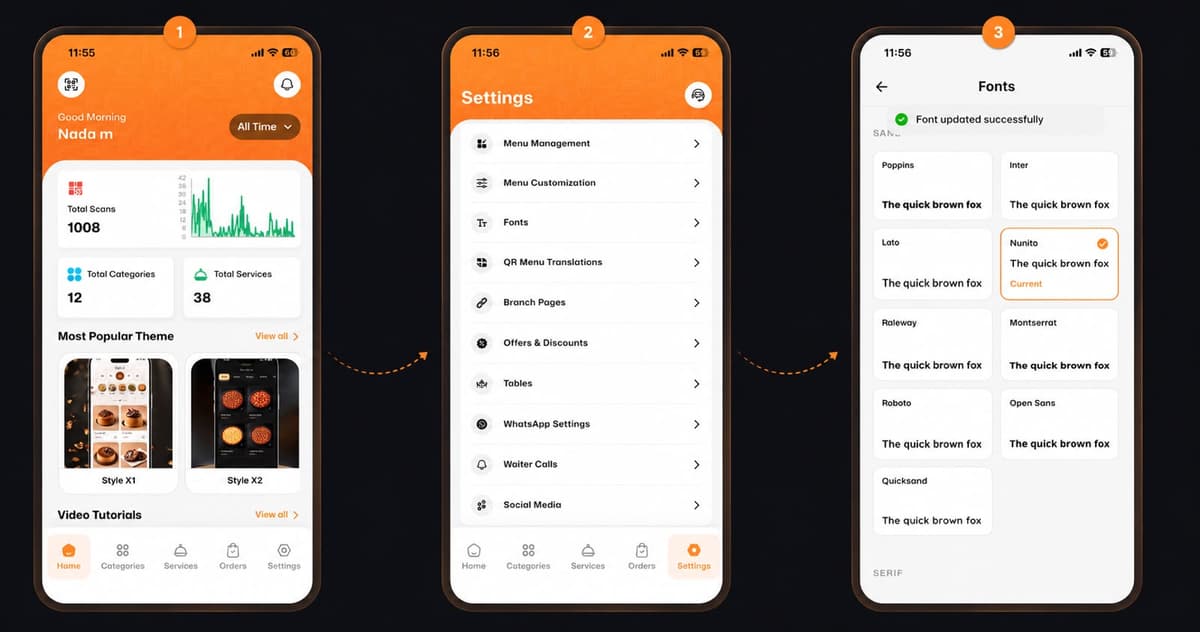
From your main Home dashboard, look at the bottom navigation menu. Tap on the Settings icon (the gear icon located on the far right) to access your restaurant's control panel.
Step 2: Access the Fonts Menu
Once you are in the Settings section, you will see a list of customization options like Menu Management and Menu Customization. Scroll down slightly and tap on Fonts (indicated by the "Tt" icon).
Step 3: Choose Your Perfect Font
Now it’s time to get creative! Browse through our wide selection of professional fonts (such as Poppins, Inter, Lato, Nunito, and more).
Simply tap on the font that best fits your brand's style.
A green checkmark and a message saying "Font updated successfully" will appear at the top of the screen.
🎉 Congratulations!
Your new font is instantly applied, and your digital menu just got a fresh new look. You are now ready to impress your customers with a beautifully customized eMenu AI experience!