Keep your business details up to date and customize your brand effortlessly! Managing your profile on eMenu AI is quick, simple, and gives you full control over how customers see your menu. Follow these easy steps to get started:
*This smart link automatically redirects you to the Apple App Store, Google Play, or Web App based on your device.
Step 1: Go to Settings
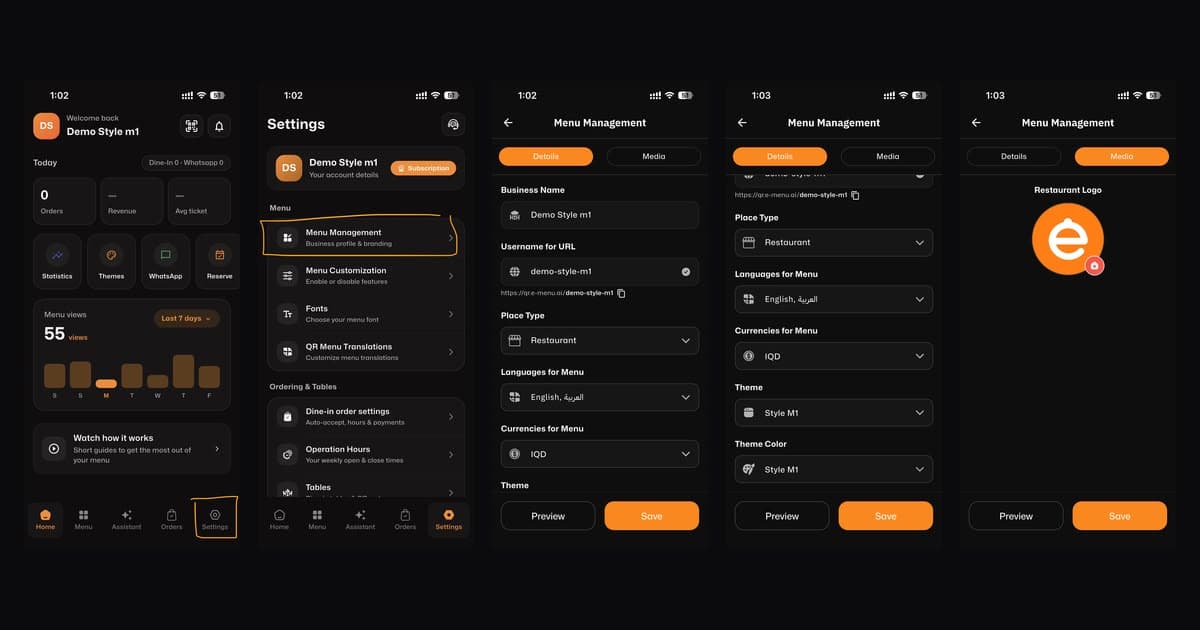
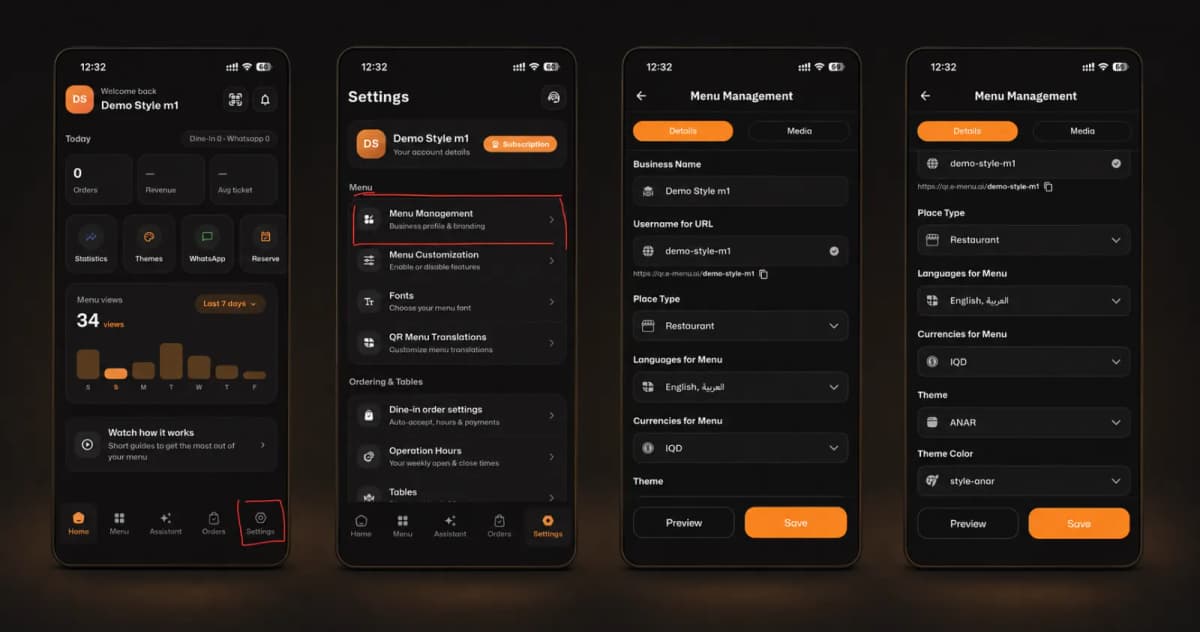
From your main dashboard, look at the bottom navigation bar and tap on the Settings icon located in the bottom right corner.
Step 2: Access Menu Management
In the Settings menu, find the Menu section and tap on Menu Management (Business profile & branding) to view and edit your details.
Step 3: Update Your Details & Branding
Now it’s time to customize your digital menu! On this screen, you can update:
Business Name: The name of your restaurant or café.
Username for URL: Create a unique custom link for your menu (e.g., demo-style-m1).
Place Type: Select your business category (e.g., Restaurant).
Languages & Currencies: Choose the languages (e.g., English, العربية) and currency (e.g., IQD) your menu will display.
Theme & Color: Pick a beautiful design Theme and Theme Color that matches your brand identity.
Step 4: Preview and Save
Before finalizing, you can tap the Preview button to see exactly how your menu will look to customers. Once you are satisfied, tap the orange Save button to apply your changes!
🎉 Congratulations!
Your business profile is fully updated. You are ready to offer an amazing digital experience to your customers!