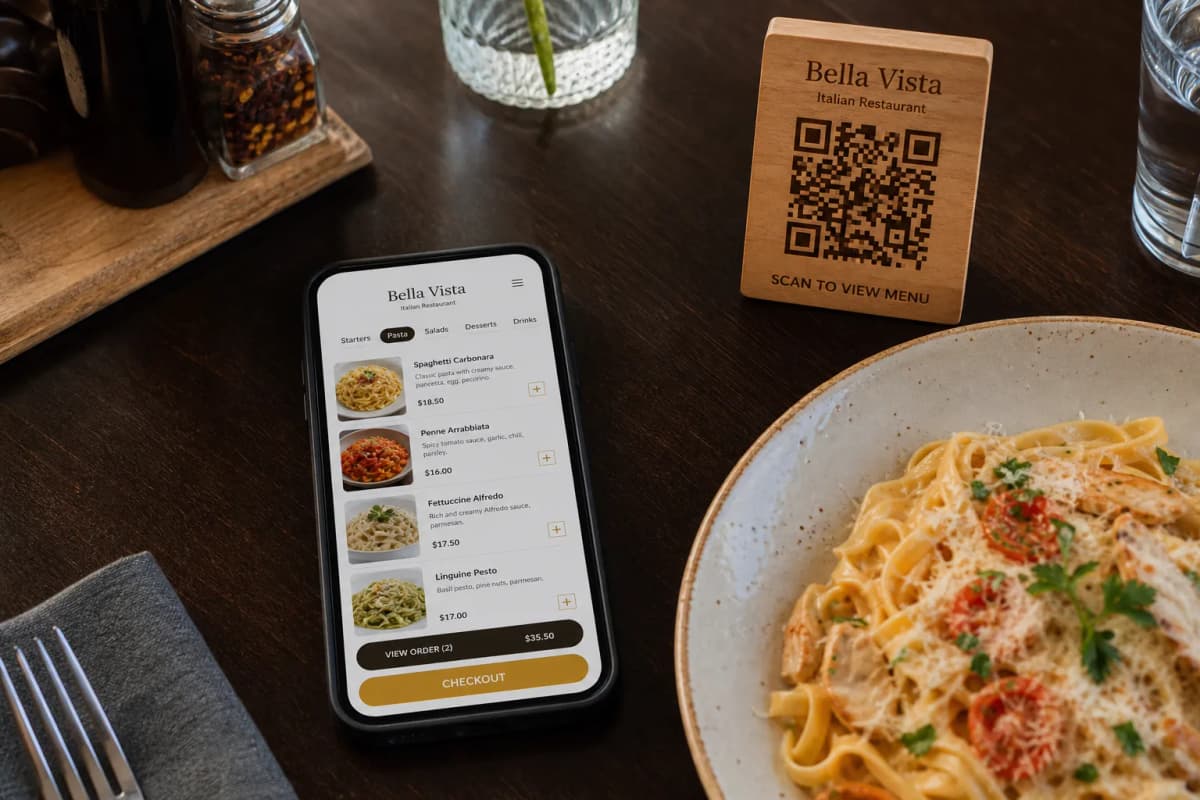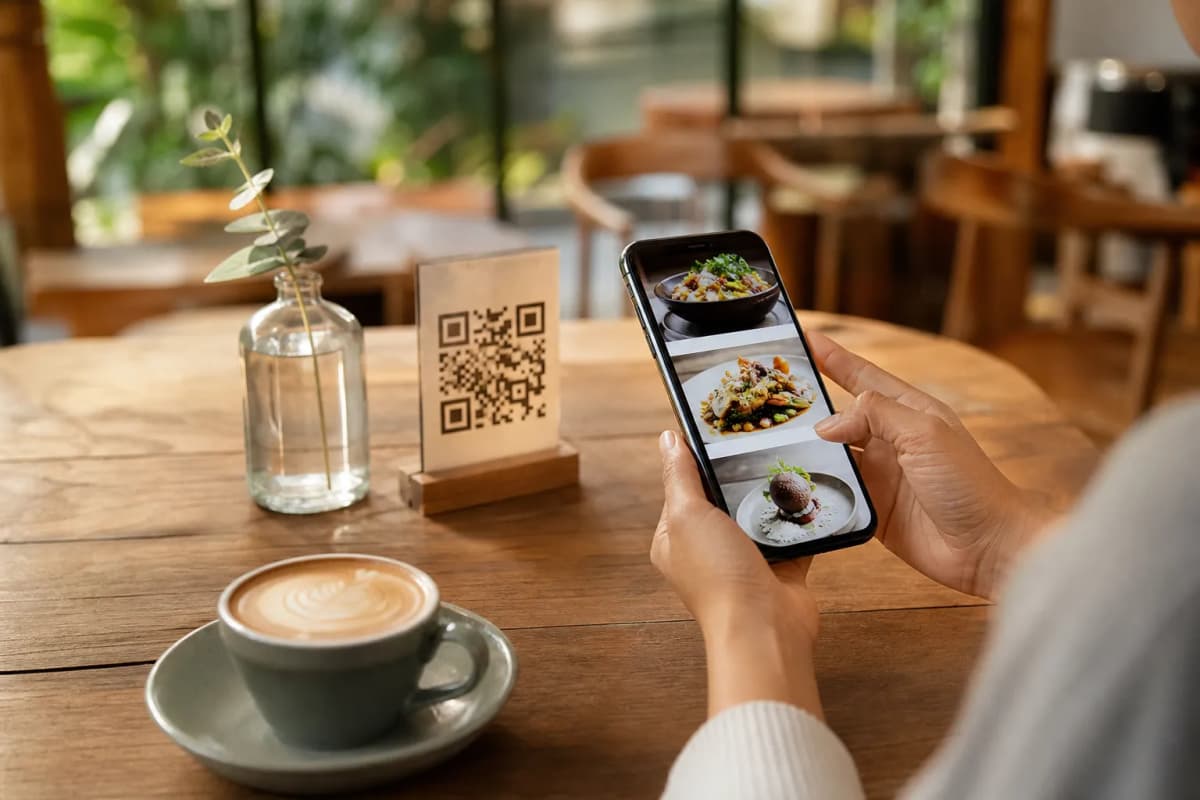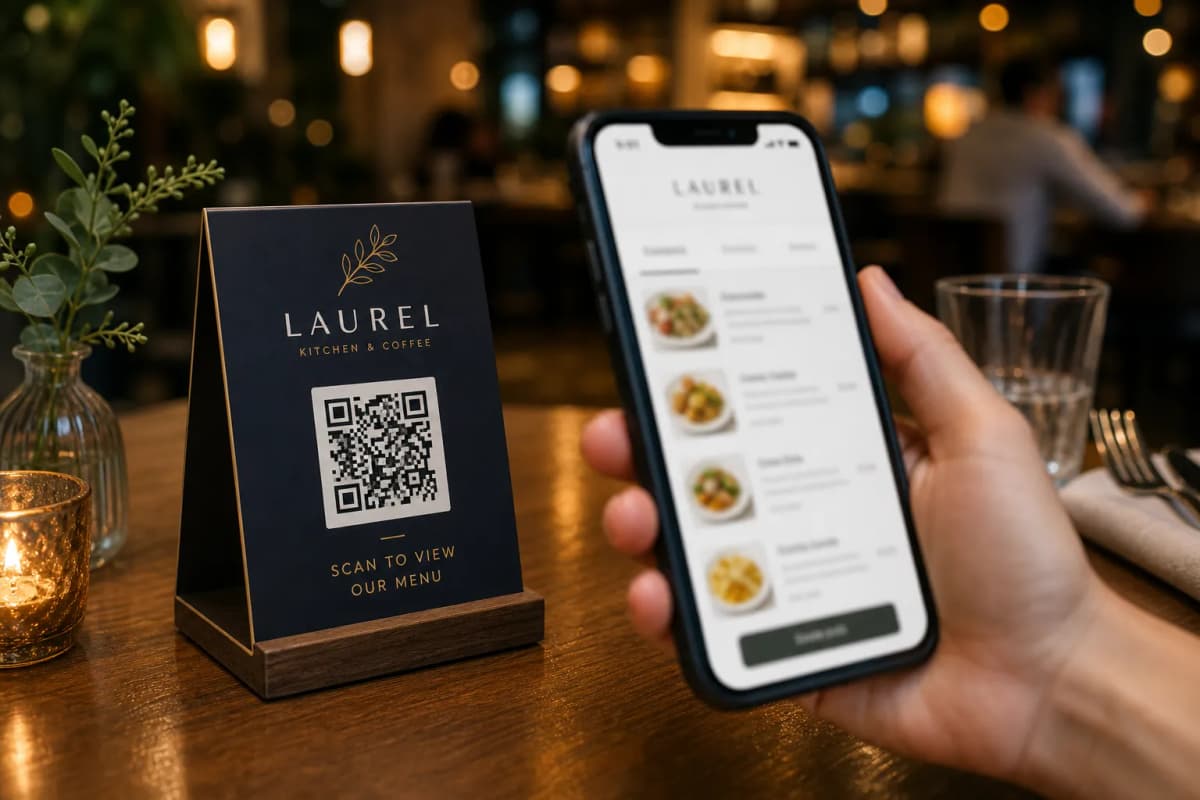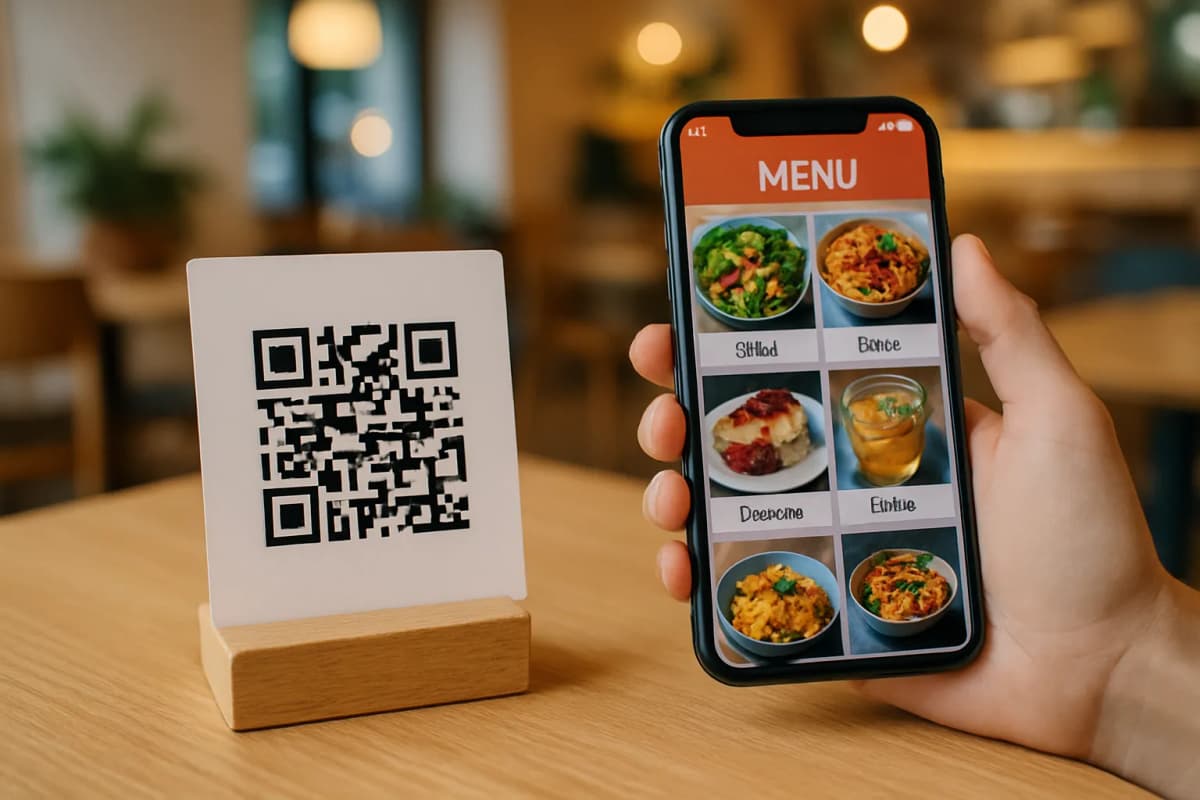
In the modern dining industry, transitioning to digital menus ai is one of the fastest ways to increase order accuracy, speed up service, and boost table turnover. Restaurant owners are moving away from static PDF files and adopting interactive, smart digital menus that customers can browse, translate, and order from directly. Setting up this technology might seem complex, but with the right steps, you can have your digital menu running on every table in under an hour.
Step 1: Create Your Account and Access the Dashboard
To begin, you need to set up your restaurant profile. Open your computer browser and navigate to the business dashboard to create your free account. Fill in your restaurant name, contact information, and primary currency. The platform supports over 95 world currencies, allowing you to choose your local currency instantly. If you prefer managing your setup from a mobile device, you can download the administration app from the smart app link which works on iOS, Android, and web platforms.
Step 2: Build Your Menu Structure and Add Items
Once inside the dashboard, it is time to build your digital menu. Follow these steps to ensure a logical layout for your guests:
- Create Categories: Start by adding main sections such as Appetizers, Mains, Desserts, and Beverages. This helps customers navigate your menu quickly.
- Add Items: Click on a category and select Add Item. Enter the dish name, description, and price.
- Generate AI Images: If you do not have professional photos, use the built-in AI image generation tool inside the dashboard to create realistic, appetizing visuals for your dishes.
- Configure Dietary Tags: Add labels like Vegan, Gluten-Free, or Spicy to help customers make safe dining decisions.
Configuring Advanced Features in Your Menus AI
A great digital menu does more than display food: it handles transactions and communication. In your dashboard settings, you can customize how your customers interact with your restaurant:
- Activate WhatsApp Orders: For takeaway or delivery, toggle the WhatsApp ordering feature. Customers can build their order in the menu and submit it to your WhatsApp number with live tracking.
Step 3: Choose a Design Template and Generate QR Codes
Your digital presence should reflect your brand identity. Navigate to the templates gallery to browse professional, pre-designed layouts. Select a design that matches the mood of your cafe or restaurant. Every template is fully customizable, and you can request a custom template for free to match your exact branding colors and logo.
After selecting your template, go to the QR Code section in the dashboard. Generate your unique QR code, customize its colors, insert your logo in the center, and download it in high resolution. Print these QR codes and place them on your tables, bar counters, or entrance doors.
Step 4: Testing and Troubleshooting
Before welcoming customers, conduct a quick test run to verify everything works perfectly. Scan the printed QR code using your own smartphone. Check if the menu loads quickly, verify that the auto-translation matches your expectations (the menu supports over 100 languages), and place a mock order. Test the Call Waiter button to ensure your staff receives the instant notification with the correct table number.