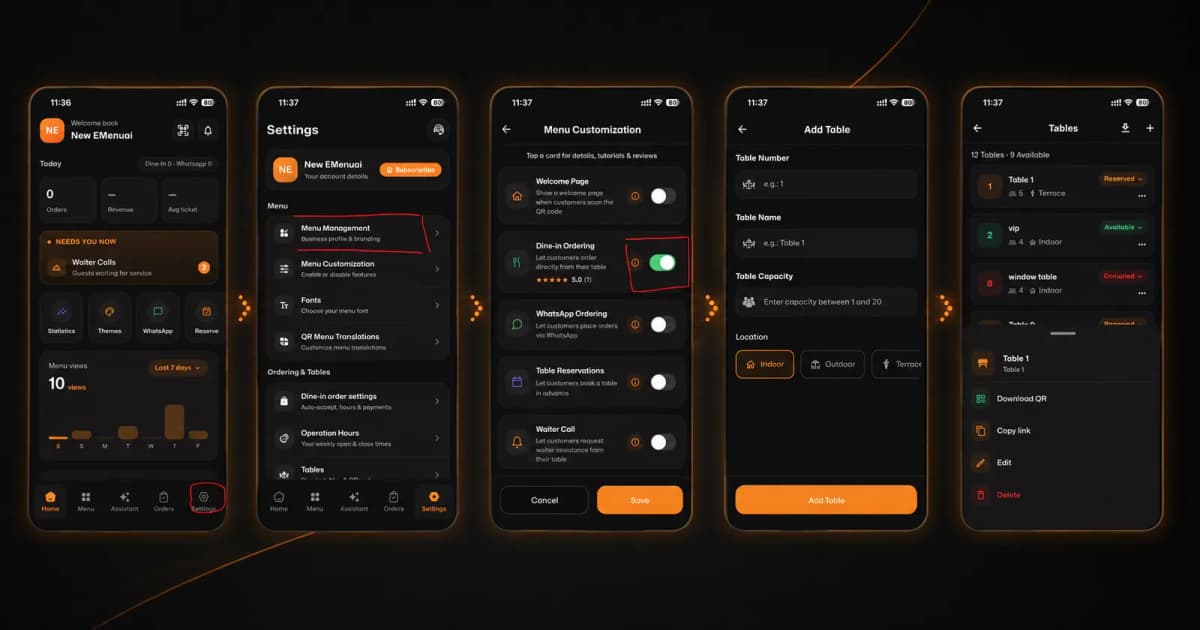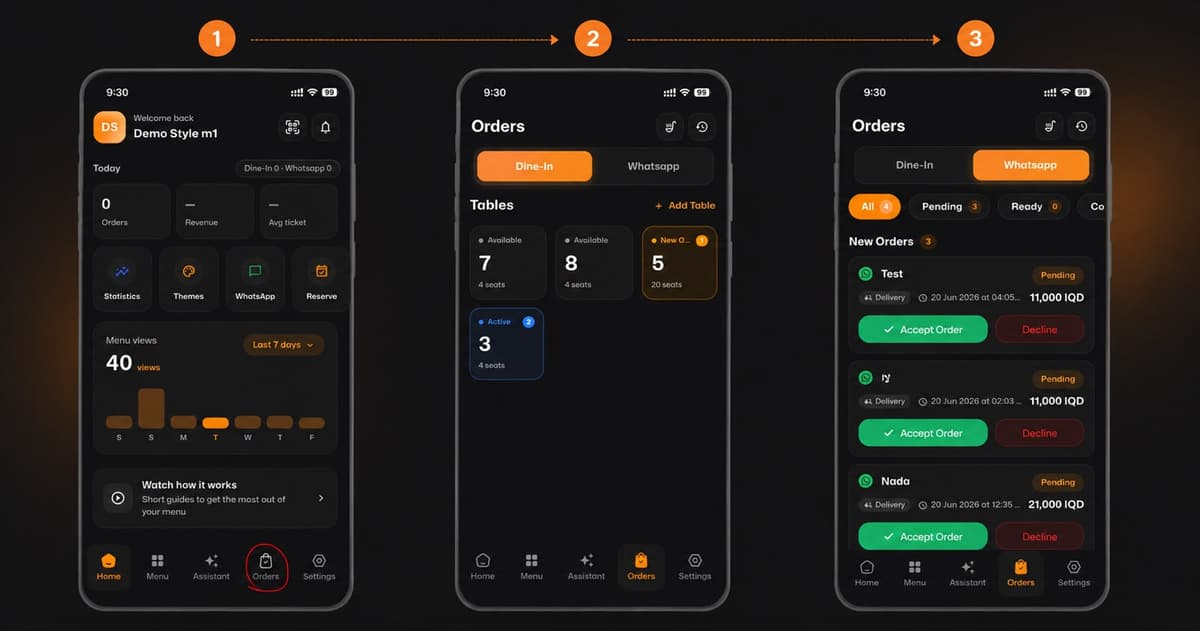
Welcome back! Sharing your menu and managing orders is easier than ever. Follow these simple steps to access and download the specific QR codes for your business based on the screenshots provided:
*This smart link automatically redirects you to the Apple App Store, Google Play, or Web App based on your device.
Step 1: Access the QR Codes Menu
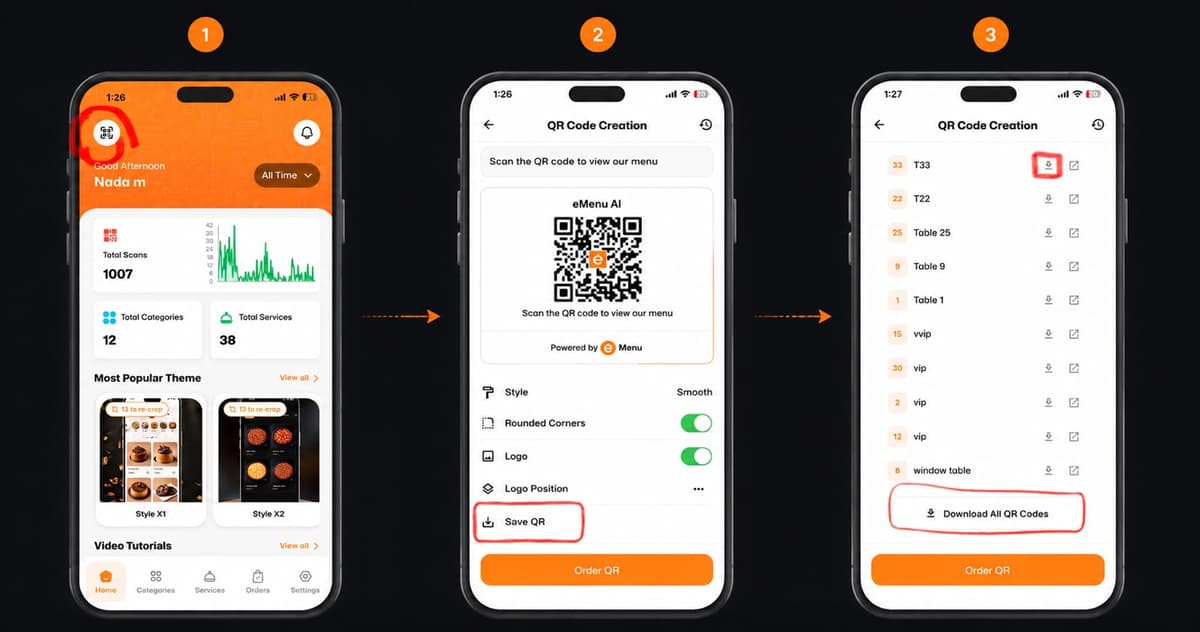
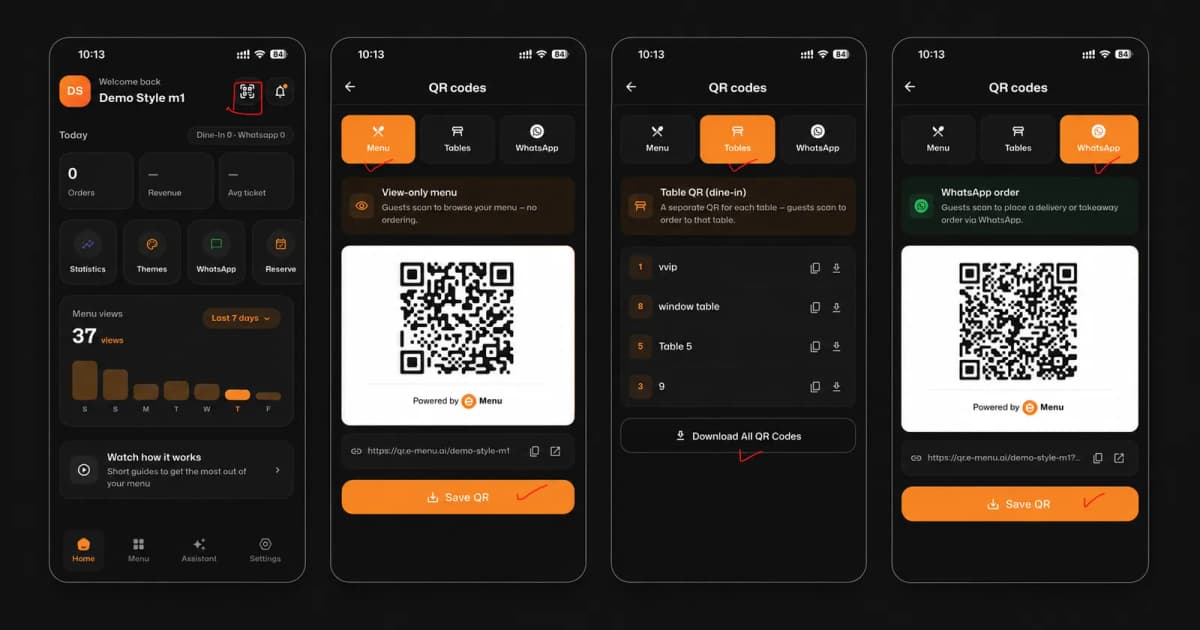
On the home dashboard, locate and tap the QR Code icon situated at the top right corner of the screen.
Step 2: Choose Your QR Code Type
Once inside the QR Codes section, you will see three tabs at the top. Choose the one that fits your needs:
Menu: Select this tab to download a "View-only menu" QR code for guests to browse your menu without ordering. Tap Save QR to download it.
Tables: Select this tab to generate and manage "Table QR (dine-in)" codes. This provides a separate QR for each table so guests can order directly. Tap Download All QR Codes to save them.
WhatsApp: Select this tab to download a "WhatsApp order" QR code. Guests can scan this to place a delivery or takeaway order via WhatsApp. Tap Save QR to download it.
🎉 Congratulations!
Your QR codes are now saved to your device. You are ready to print them, place them on your tables, and share them with your customers to revolutionize their dining experience!