Welcome to the seamless way of sharing your digital menu! Creating and downloading custom QR codes for your tables on eMenu AI is quick, simple, and takes just a few taps. Follow these 3 easy steps to get your QR codes ready:
Make sure you are logged into your account and looking at your main Home dashboard.
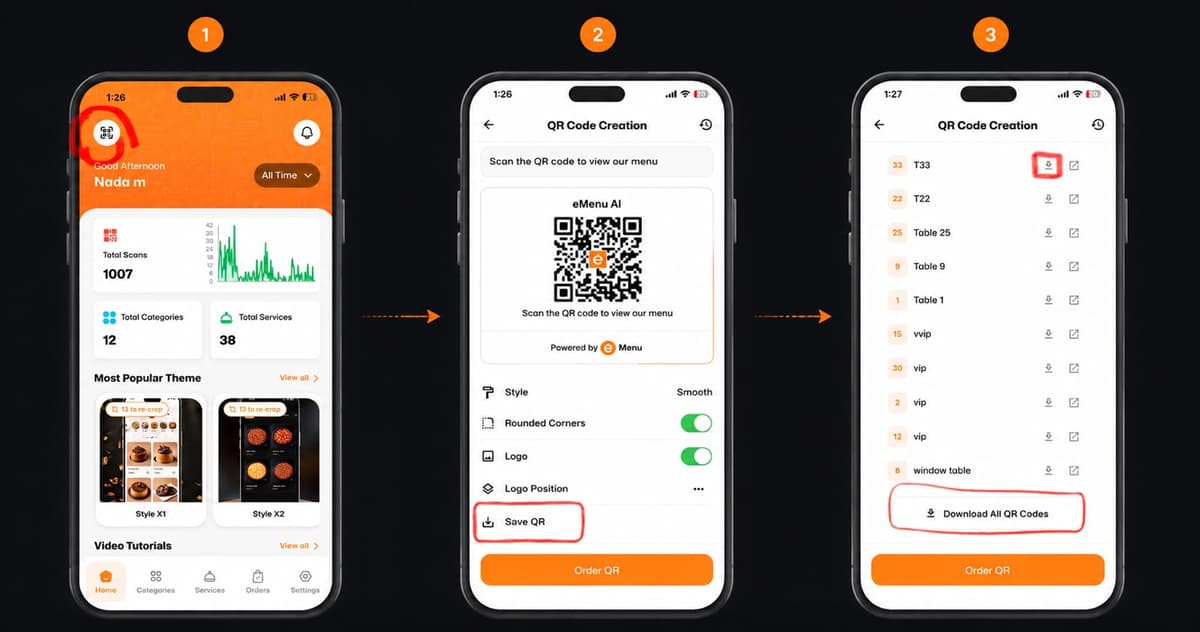
1 Step 1: Access the QR Code Menu
First, open the app and make sure you are on your main Home dashboard.
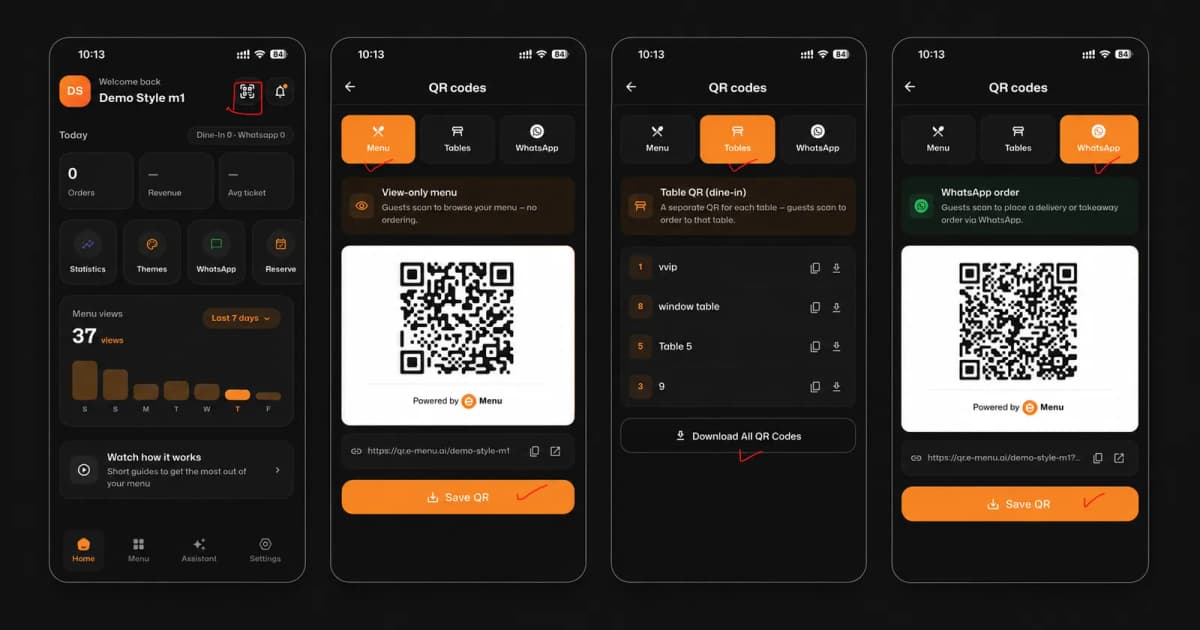
Look at the top left corner of your screen and tap the small QR Code icon.
2 Step 2: Customize and Save Your QR Code
Next, you will be taken to the "QR Code Creation" screen where you can see your menu's generated QR code.
Customize your design using the options provided (such as adjusting the Style, adding Rounded Corners, or including your Logo).
Once you are satisfied with the design, tap the Save QR option near the bottom of the screen.
3 Step 3: Download Your QR Codes
Now it’s time to save them to your device! On the final screen, you will see a list of all your configured tables and sections (e.g., T33, Table 1, vvip).
To download a code for a specific table, tap the small download icon next to that table's name.
To save time and get them all at once, simply tap the Download All QR Codes button at the very bottom.
🎉 Congratulations!
Your QR codes are now successfully downloaded. You are ready to print them out and place them on your tables to give your customers instant access to your digital menu!