Welcome to seamless menu management! Adding new items or services to your digital menu is quick, intuitive, and takes just a few seconds with eMenu AI. Follow these 5 easy steps to update your offerings:
*This smart link automatically redirects you to the Apple App Store, Google Play, or Web App based on your device
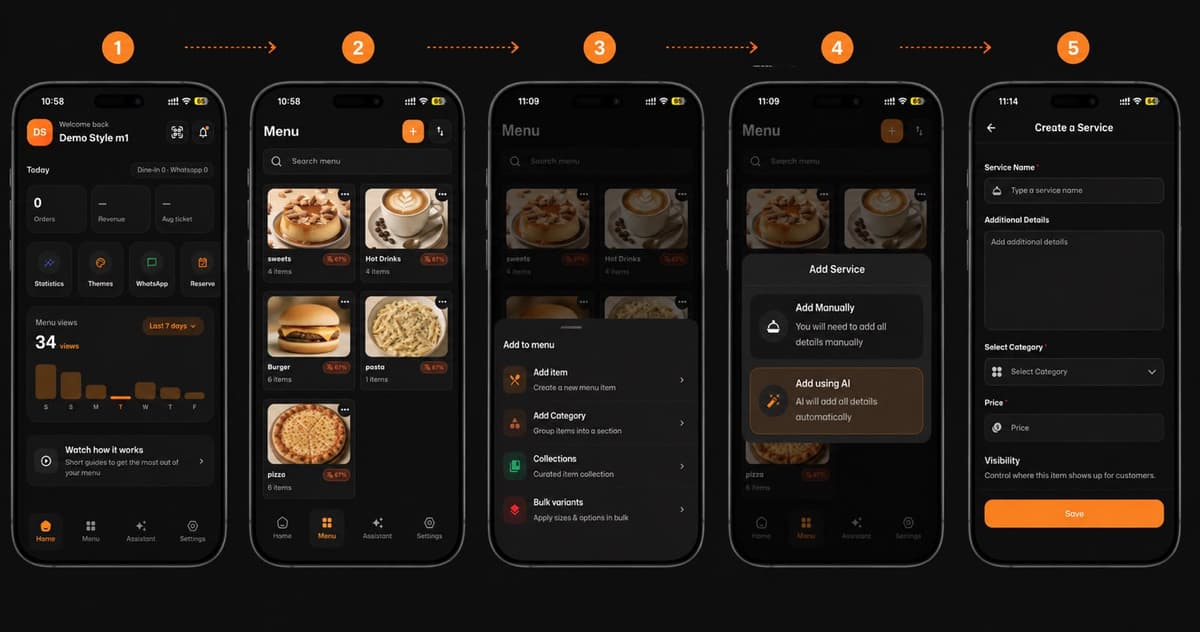
Step 1: Navigate to the Menu
From your Home dashboard, tap on the Menu icon located in the bottom navigation bar.
Step 2: Start Adding
On the Menu page, tap the orange "+" (Plus) button at the top right corner of the screen.
Step 3: Choose 'Add Item'
A menu will pop up from the bottom. Select Add item to create a new offering for your customers.
Step 4: Select Your Method
You will be prompted to choose how to add the details. You have two amazing options:
Add Manually: Type all the details yourself.
Add using AI: ✨ Let our smart AI automatically generate all the details for you!
Step 5: Fill Details & Save
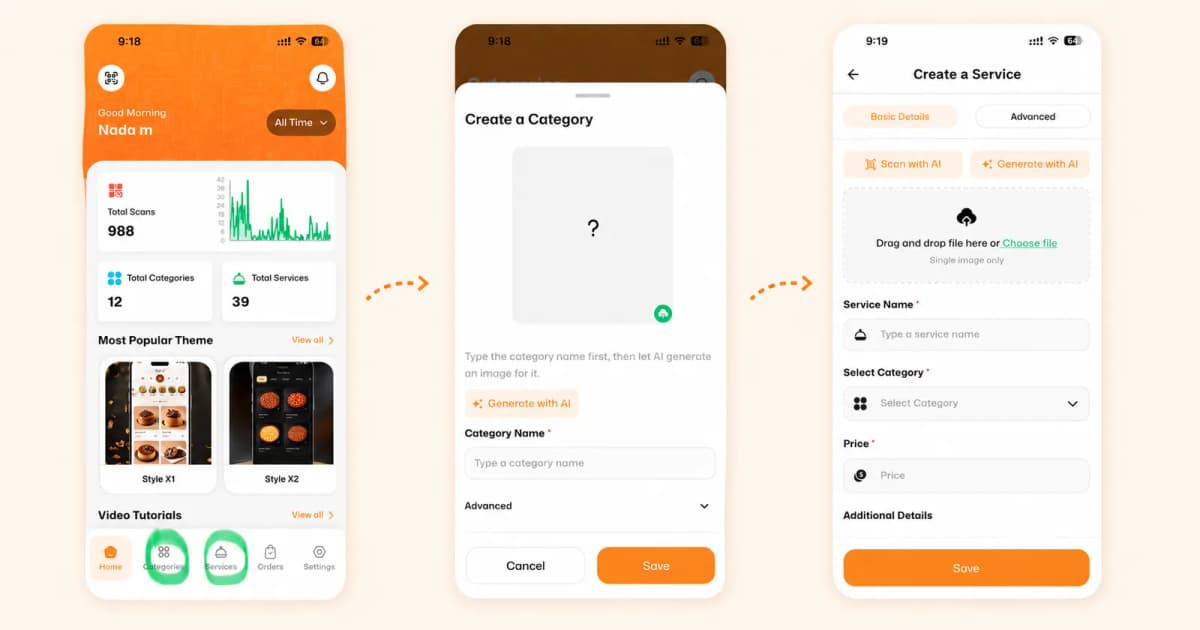
On the "Create a Service" page, simply fill in the necessary information:
Service Name (e.g., Pizza, Burger, Coffee)
Category
Price
Add any extra details, then hit the orange Save button to instantly update your menu!
🎉 Congratulations!
Your new item is now live and ready to tempt your customers. Manage your menu effortlessly with eMenu