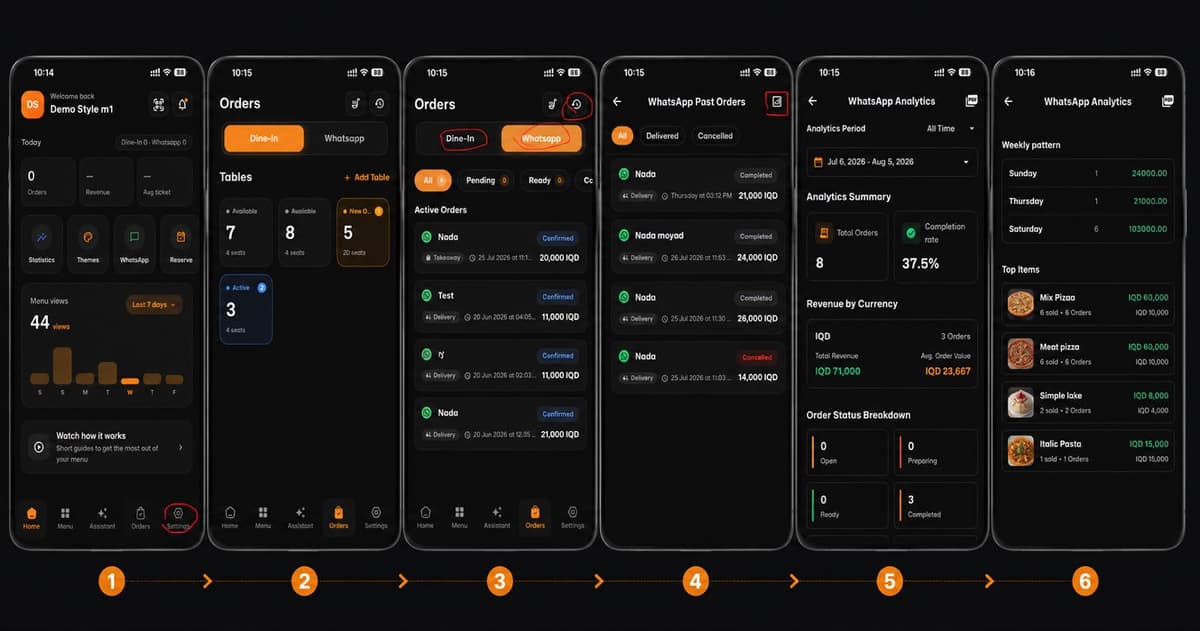
Track your business performance and understand your customers better! Accessing your WhatsApp order analytics on eMenu AI is quick and easy. Follow these 4 simple steps:
*This smart link automatically redirects you to the Apple App Store, Google Play, or Web App based on your device.
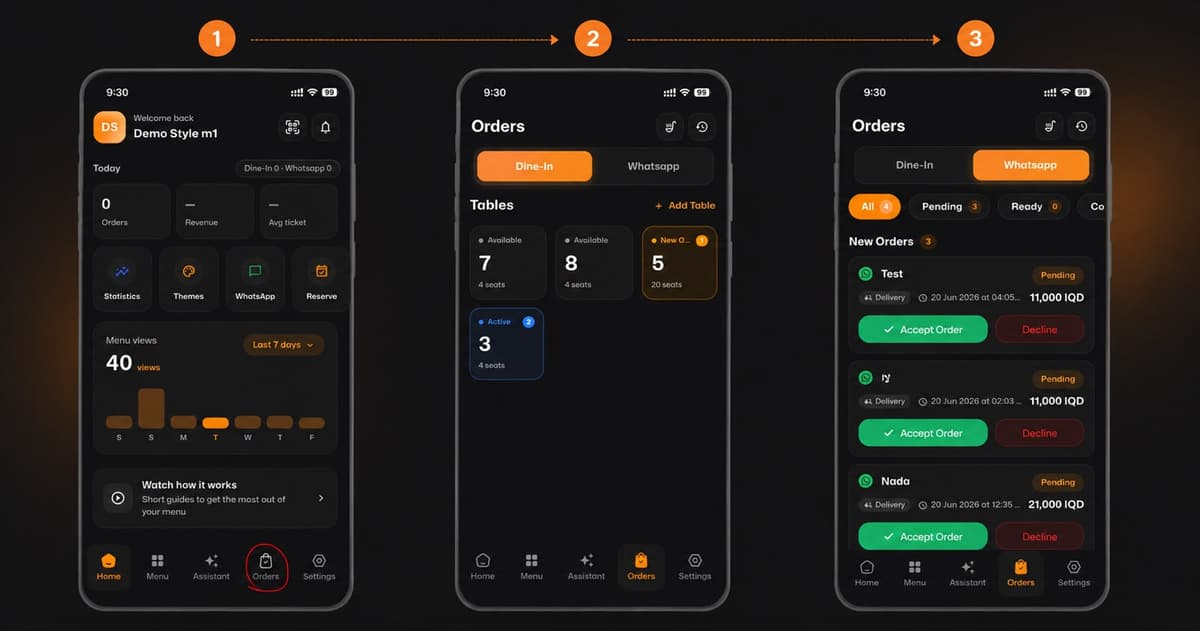
Step 1: Navigate to Orders
Open the app and tap on the Orders icon in the bottom navigation menu.
Step 2: Access WhatsApp History
At the top of the screen, select the Whatsapp tab. Then, tap the History icon (the clock symbol) located in the top right corner to view your past orders.
Step 3: Open Analytics
On the WhatsApp Past Orders screen, tap the Analytics icon (the bar chart symbol) in the top right corner.
Step 4: Explore Your Data
You are now in the Analytics dashboard! Here you can customize the date range and view:
Total Orders & Completion Rate.
Total Revenue & Average Order Value.
Weekly ordering patterns.
Your Top Selling Items.
(Pro tip: You can even export this data as a PDF using the icon at the top right!)
🎉 Congratulations!
You now know how to track your WhatsApp sales performance. Keep analyzing your data to grow your business with eMenu AI!