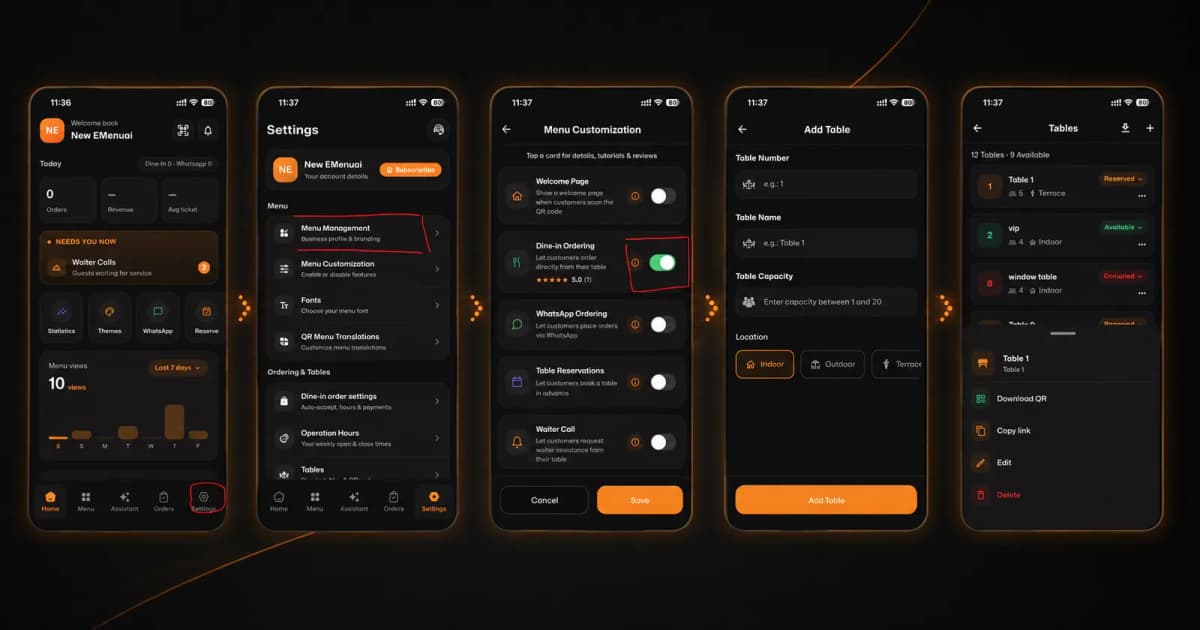
How to Add a New Table on the eMenu AI App: A Step-by-Step Guide
Managing your restaurant's seating is quick and easy. Follow these 4 simple steps to set up your tables:
*This smart link automatically redirects you to the Apple App Store, Google Play, or Web App based on your device.
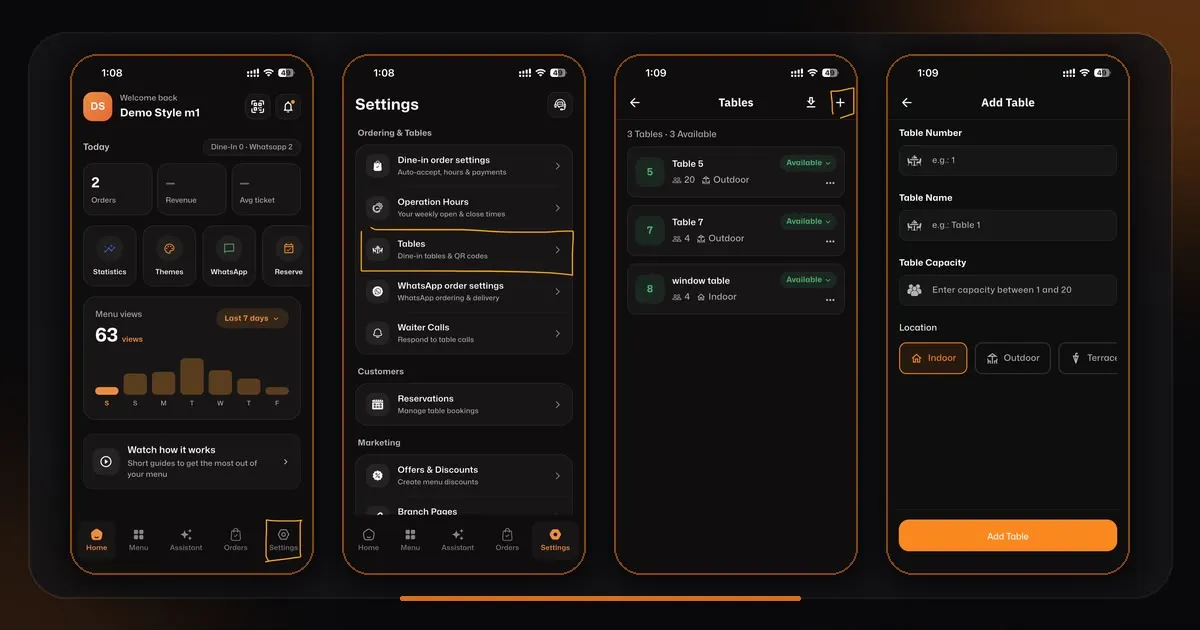
1️⃣ Step 1: Go to Settings
Open the app and look at the bottom menu.
Tap on the Settings icon located in the bottom right corner.
2️⃣ Step 2: Select Tables
In the Settings menu, find the Ordering & Tables section.
Tap on Tables (Dine-in tables & QR codes) to manage your seating.
3️⃣ Step 3: Add a New Table
You will see your current list of tables.
Tap the + (Plus) icon in the top right corner to create a new one.
4️⃣ Step 4: Fill in the Details
Enter the Table Number and Table Name.
Set the Table Capacity (number of seats).
Choose the Location (Indoor, Outdoor, or Terrace).
Finally, tap the orange Add Table button at the bottom!