Welcome to seamless team management! Setting up staff accounts and customizing their permissions on eMenu AI is quick, simple, and puts you in full control of your business operations. Follow these easy steps to get your team onboard:
*This smart link automatically redirects you to the Apple App Store, Google Play, or Web App based on your device.
Step 1: Navigate to Settings
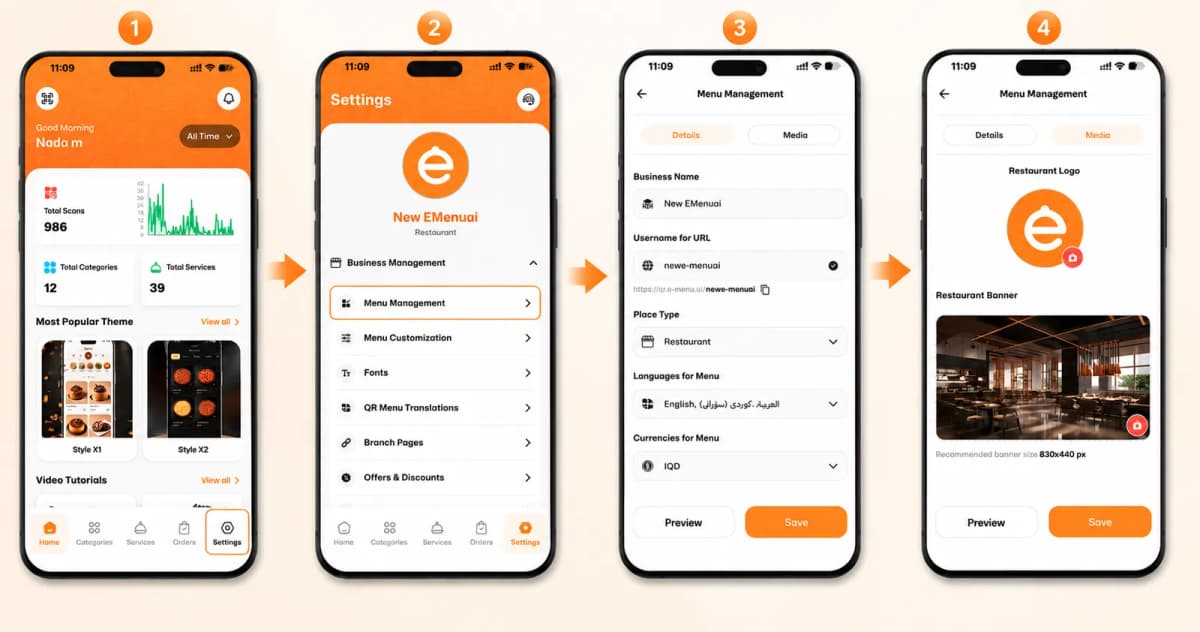
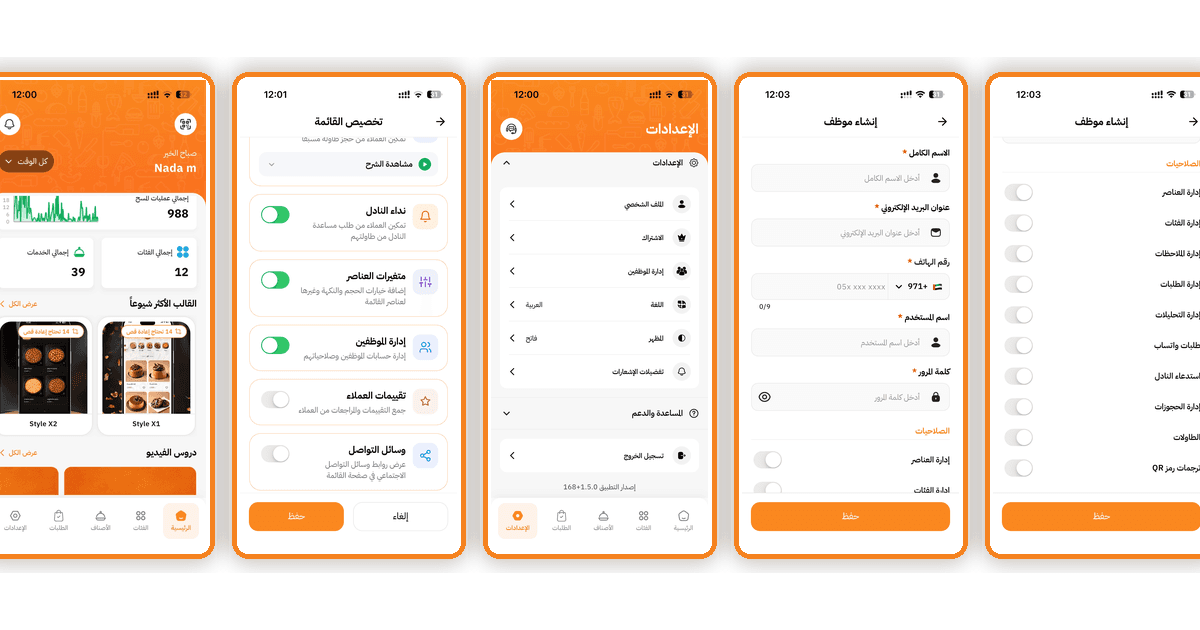
First, open your eMenu AI app and look at the bottom navigation bar.
Tap on the Settings icon located in the bottom right corner of your screen.
Step 2: Open Staff Management
Once you are in the Settings menu, locate the staff options:
Tap on Manage Staff from the list.
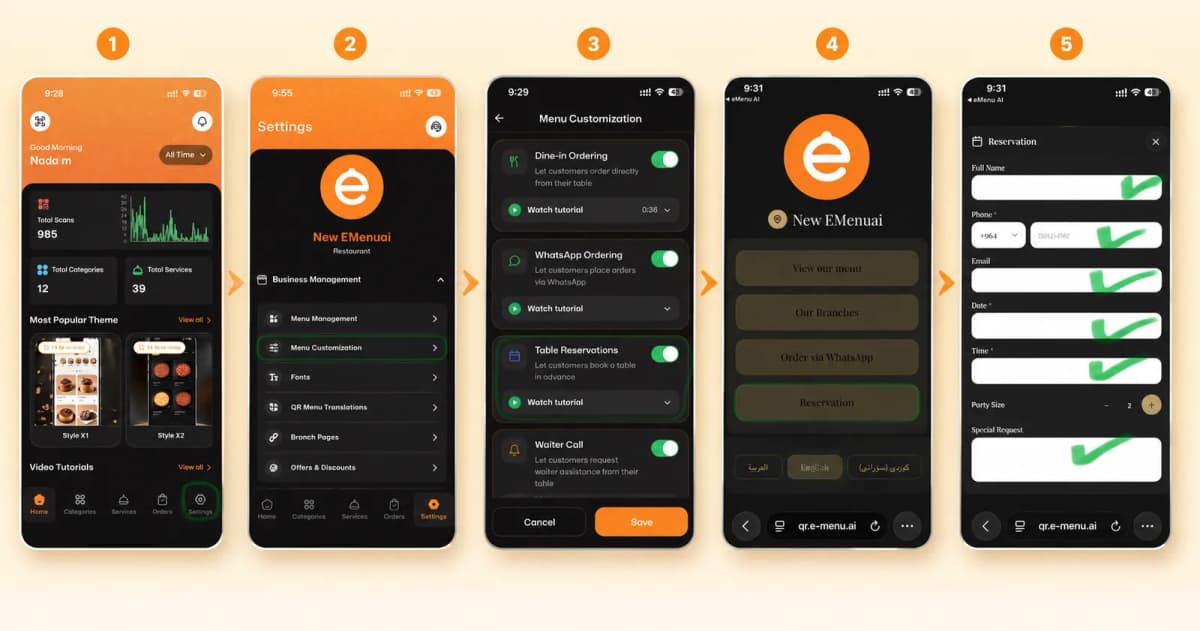
(Note: Ensure the Staff Management toggle is turned on in your Menu Customization settings so you can manage accounts and permissions!)
Step 3: Fill in Staff Details
Next, you will need to create the new staff member's profile by entering their basic details. Please provide:
Their Full name and Email address.
A valid Phone number (including the country code).
A unique Username and a secure Password that they will use to log in.
Step 4: Assign Custom Permissions
Scroll down to the Permissions section. Here, you can strictly control what your staff member has access to by toggling specific features on or off, such as:
Item & Category Management
Order & Feedback Management
Analytics Management
WhatsApp Orders & Waiter Calls
Reservations, Tables, & QR Translations
Step 5: Save the Account
Once you are happy with the details and permissions, simply tap the big orange Save button at the bottom of the screen.
🎥 Watch the Registration Tutorial
Need a visual guide? Watch this quick video to see How to Add and Manage Staff on eMenu AI: A Step-by-Step Guide
🎉 Congratulations!
Your new staff account is successfully created! You are now ready to empower your team, delegate tasks securely, and streamline your business with eMenu AI.