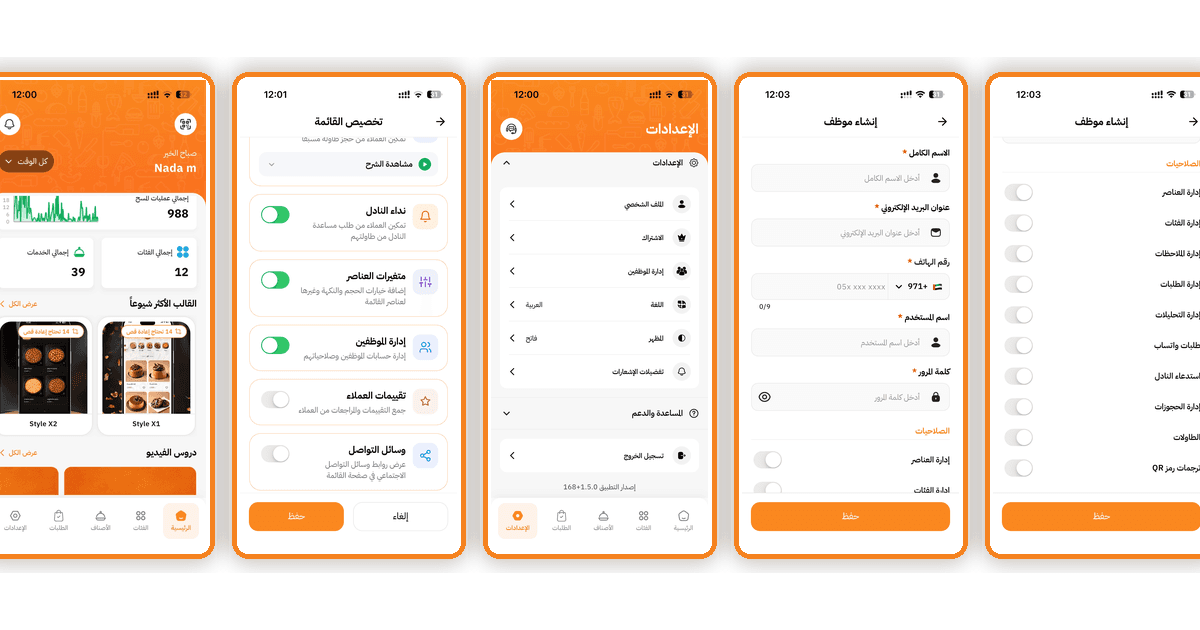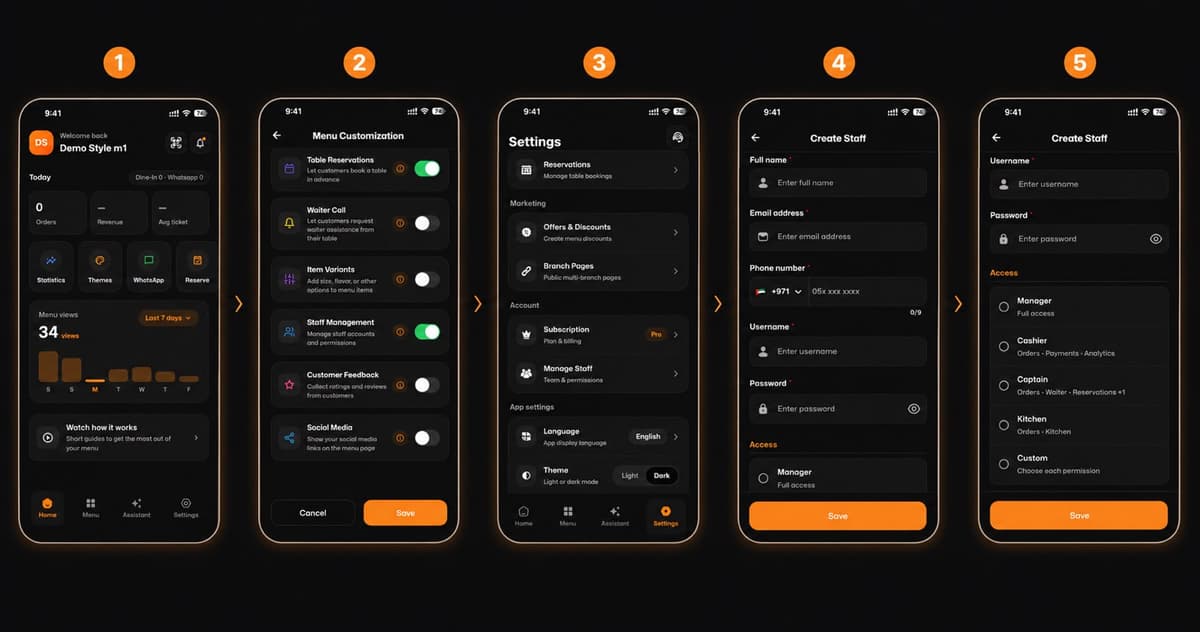
Welcome to the easiest way to manage your restaurant's team! Adding staff members and assigning their roles on eMenu AI is highly secure and takes just a few clicks. Follow these 5 easy steps to get your team on board:
*This smart link automatically redirects you to the Apple App Store, Google Play, or Web App based on your device
Step 1: Open Your Dashboard
First, open the eMenu AI app. From your main dashboard, locate and tap on the Settings icon at the bottom of the screen.
Step 2: Enable Staff Management
Navigate to the Menu Customization section. Find the Staff Management option and make sure the toggle switch is turned ON (green). Tap Save to confirm.
Step 3: Access the Manage Staff Menu
Go back to your main Settings menu. Scroll down to the Account section and tap on Manage Staff to start building your team.
Step 4: Fill in Staff Details
Now it’s time to create the staff profile. You will need to enter their basic information:
Full name
Email address
A valid Phone number
A unique Username
A strong, secure Password
Step 5: Assign Roles and Save
Finally, scroll down to the Access section to assign a role to your new staff member. Choose between:
Manager (Full access)
Cashier
Captain
Kitchen
Custom (Choose specific permissions)
Once selected, tap the Save button.
🎥 Watch the Registration Tutorial
Need a visual guide? Watch this quick video to see How to Add and Manage Staff on the eMenu AI App
🎉 Congratulations!
Your staff member's account is successfully created, and they are ready to help you deliver the best experience with eMenu AI!