How to Connect Your Social Media Accounts on the eMenu AI App: A Step-by-Step Guide
Welcome back! Boosting your online presence and connecting with your customers is easy with eMenu AI. Adding your social media accounts takes just a few taps. Follow these 5 easy steps to get started:
*This smart link automatically redirects you to the Apple App Store, Google Play, or Web App based on your device
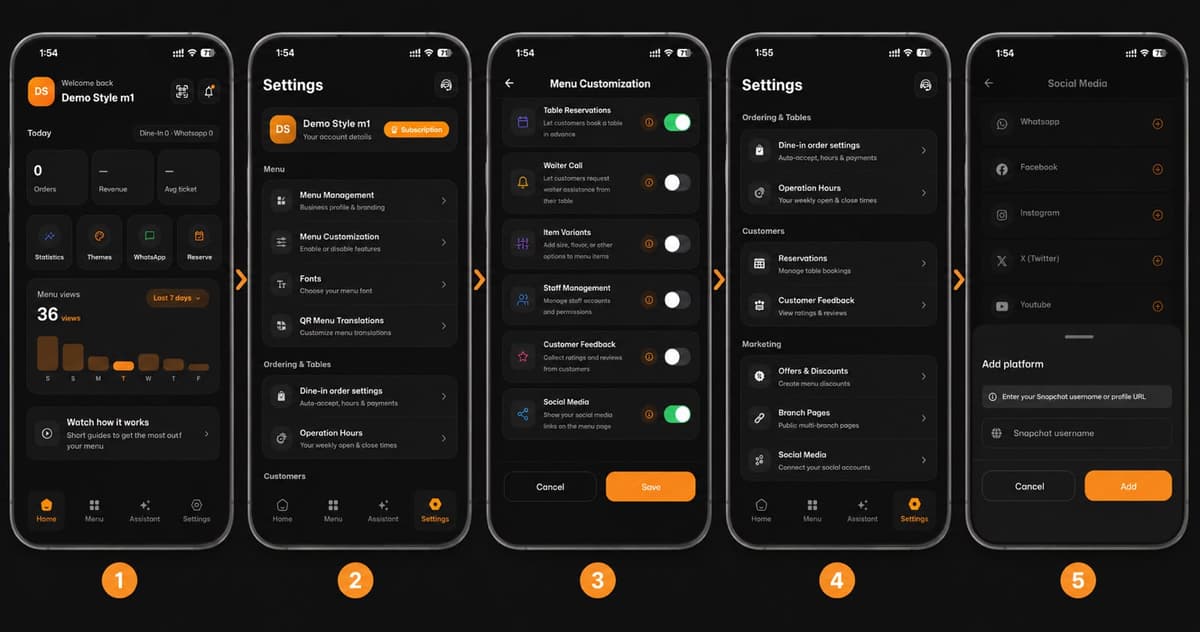
Step 1: Go to Settings
Open the app and navigate to your main dashboard. Tap on the Settings icon located at the bottom right corner of the screen.
Step 2: Access Menu Customization
In the Settings menu, look under the "Menu" section and tap on Menu Customization to enable new features for your digital menu.
Step 3: Enable Social Media
Scroll down the customization list and toggle the switch for Social Media to turn it on (it will turn green). Important: Don't forget to tap the orange Save button at the bottom!
Step 4: Select Social Media Settings
Back in the main Settings menu, scroll down to the "Marketing" section and tap on Social Media (Connect your social accounts).
Step 5: Add Your Platforms
Now it's time to link your accounts! Choose from available platforms like WhatsApp, Facebook, Instagram, X (Twitter), or YouTube. You can also add specific handles, like your Snapchat username or profile URL, by typing it in and tapping Add.
🎉 Congratulations!
Your social media links are now connected to your digital menu. Your customers can easily find and follow your business online!