Welcome to seamless booking! Setting up table reservations on your eMenu AI app is quick, simple, and takes just a few clicks. Follow these easy steps to get started:
*This smart link automatically redirects you to the Apple App Store, Google Play, or Web App based on your device.
Step 1: Go to Settings
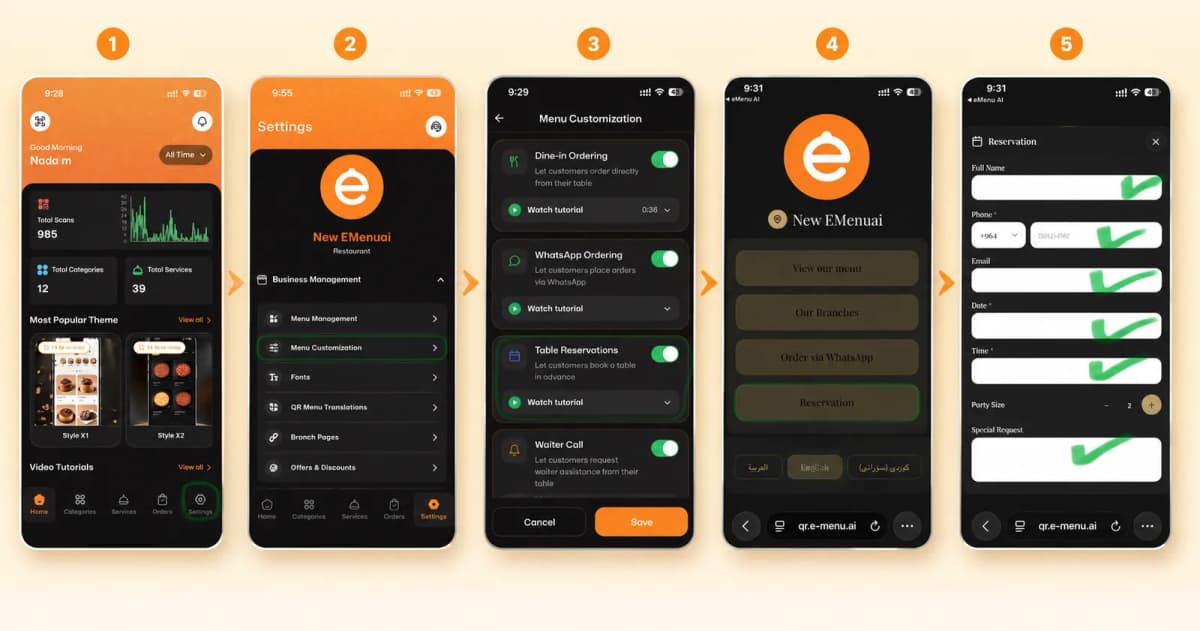
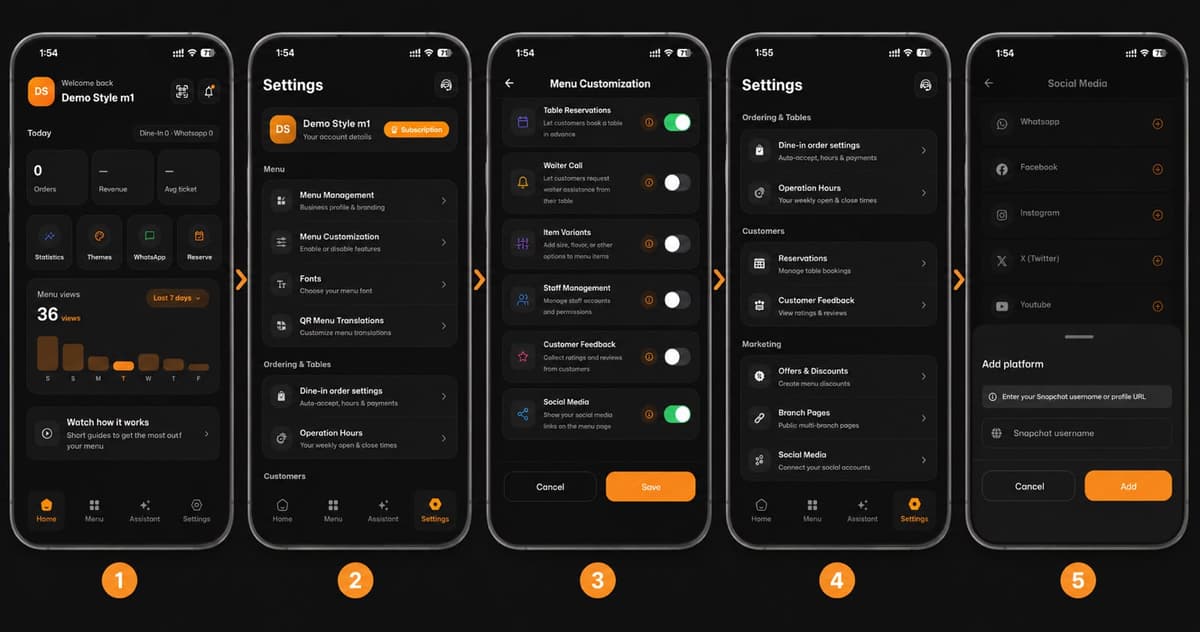
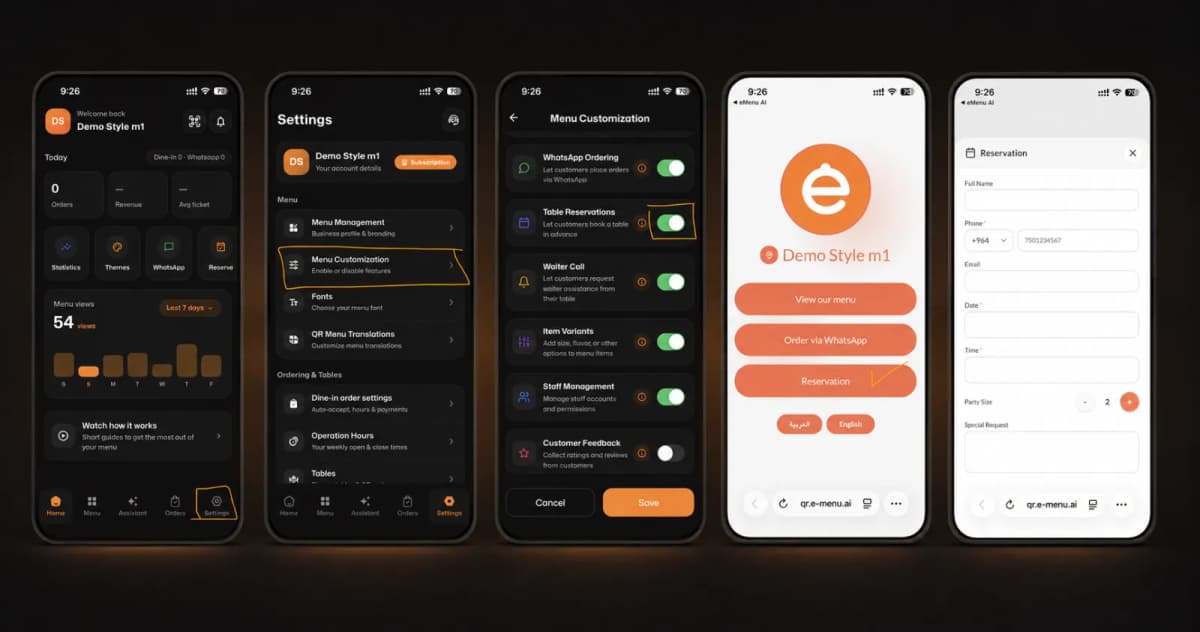
First, open the app and tap on the Settings icon located at the bottom right corner of your screen.
Step 2: Access Menu Customization
Next, under the Menu section, tap on Menu Customization. This is where you can enable or disable specific features for your digital menu.
Step 3: Enable Table Reservations
Scroll down until you find Table Reservations. Toggle the switch to turn it on (it will turn green). This allows your customers to easily book a table in advance directly from their phones.
Step 4: Ready for Customers!
Now it’s time to see it in action! Your digital QR menu will automatically update to display a new Reservation button. Customers can simply click it, fill out a quick form with their name, phone number, date, time, and party size, and submit their booking!
🎥 Watch the Registration Tutorial
Need a visual guide? Watch this quick video to see How to activate reservations tables on the eMenu AI App: A Step-by-Step Guide
🎉 Congratulations!
Your setup is complete, and the reservation feature is successfully active. You are now ready to receive bookings and enhance your customer experience with eMenu AI!