How to Create a Collection on eMenu AI: A Step-by-Step Guide
Welcome to the future of dining and business management! Setting up a curated item collection on eMenu AI is quick, simple, and takes just a few minutes. Follow these 4 easy steps to get started:
*This smart link automatically redirects you to the Apple App Store, Google Play, or Web App based on your device.
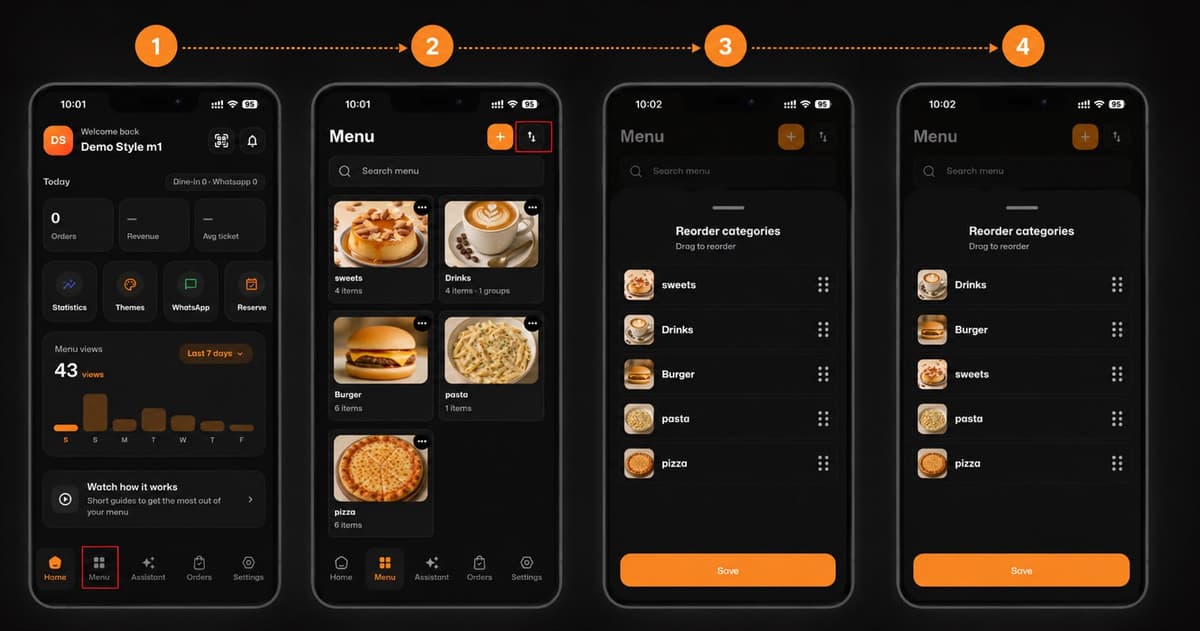
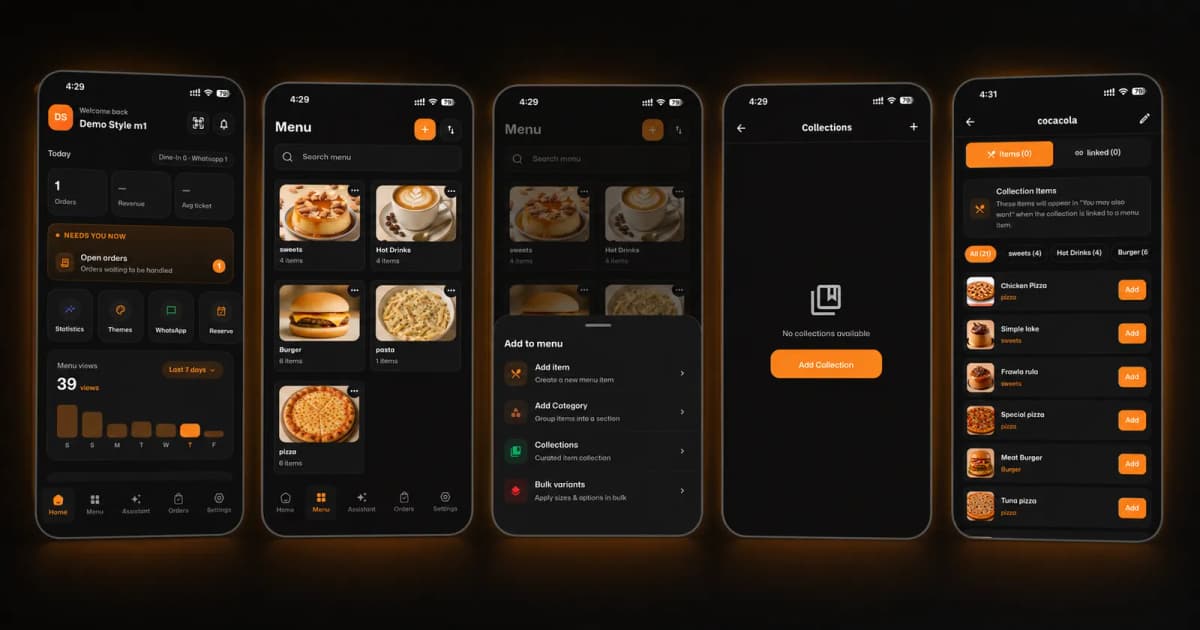
Step 1: Navigate to the Menu
First, open the app and go to your main dashboard.
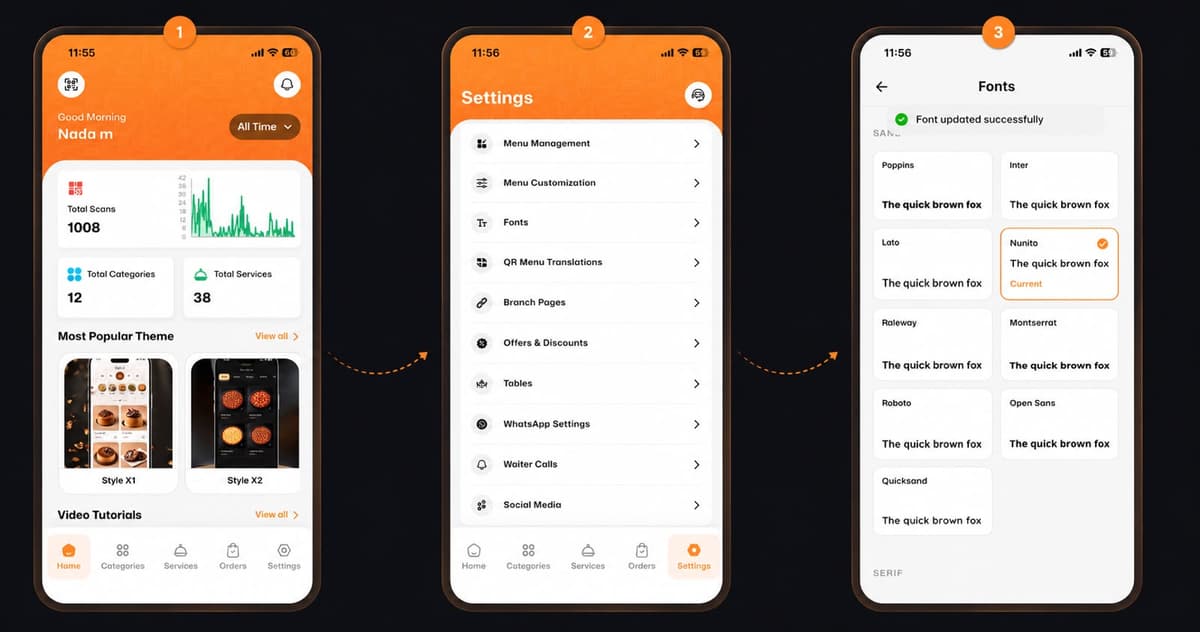
Tap on the "Menu" icon located at the bottom navigation bar.
Step 2: Add a New Item
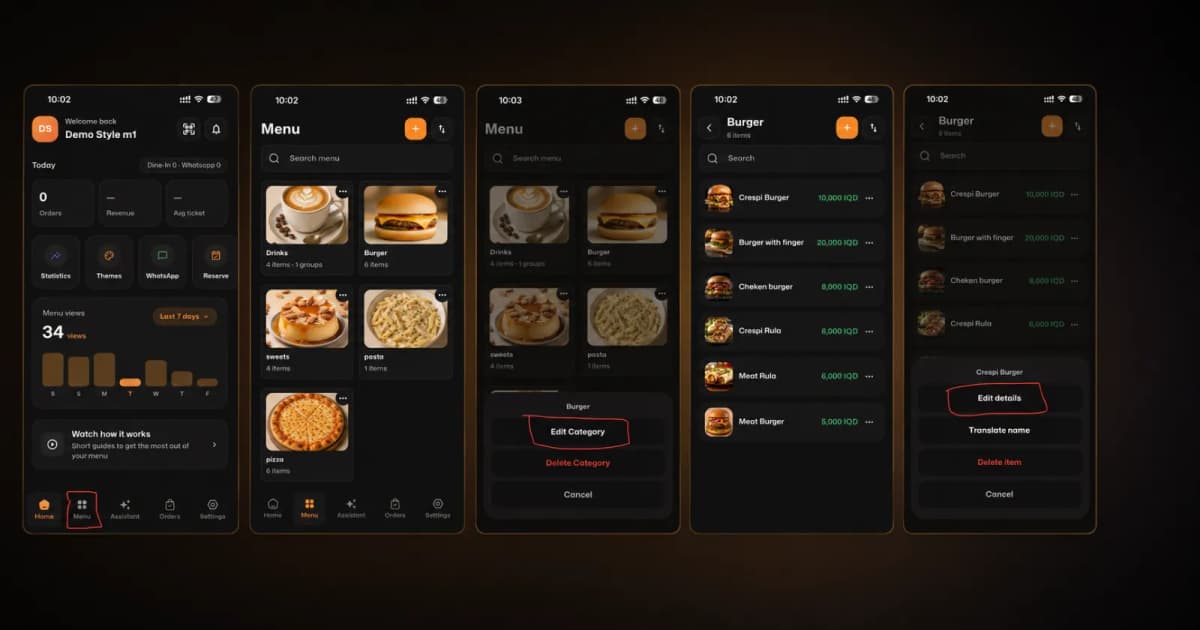
Next, you will need to open the addition menu.
Tap the "+" (Add) button located at the top right corner of the screen.
From the pop-up list at the bottom, select "Collections" (Curated item collection).
Step 3: Create Your Collection
Now it’s time to set up the collection.
If your collections page is empty, simply tap the "Add Collection" button in the center of the screen.
Step 4: Add Items to Your Collection
Customize your collection by adding your delicious offerings!
Browse through your menu categories (like sweets, Hot Drinks, or Burger).
Tap the orange "Add" button next to the specific items you want to include (e.g., Chicken Pizza, Simple lake, Meat Burger).
Note: These items will appear in the "You may also want" section to help you upsell when linked to a menu item.
🎉 Congratulations!
Your collection setup is complete! You are now ready to revolutionize your customer experience and boost your sales with eMenu AI!