Welcome back to eMenu AI! Keeping your digital menu updated and fresh is quick, simple, and takes just a few taps. Follow these 4 easy steps to edit your categories and menu items:
*This smart link automatically redirects you to the Apple App Store, Google Play, or Web App based on your device.
Step 1: Access Your Menu
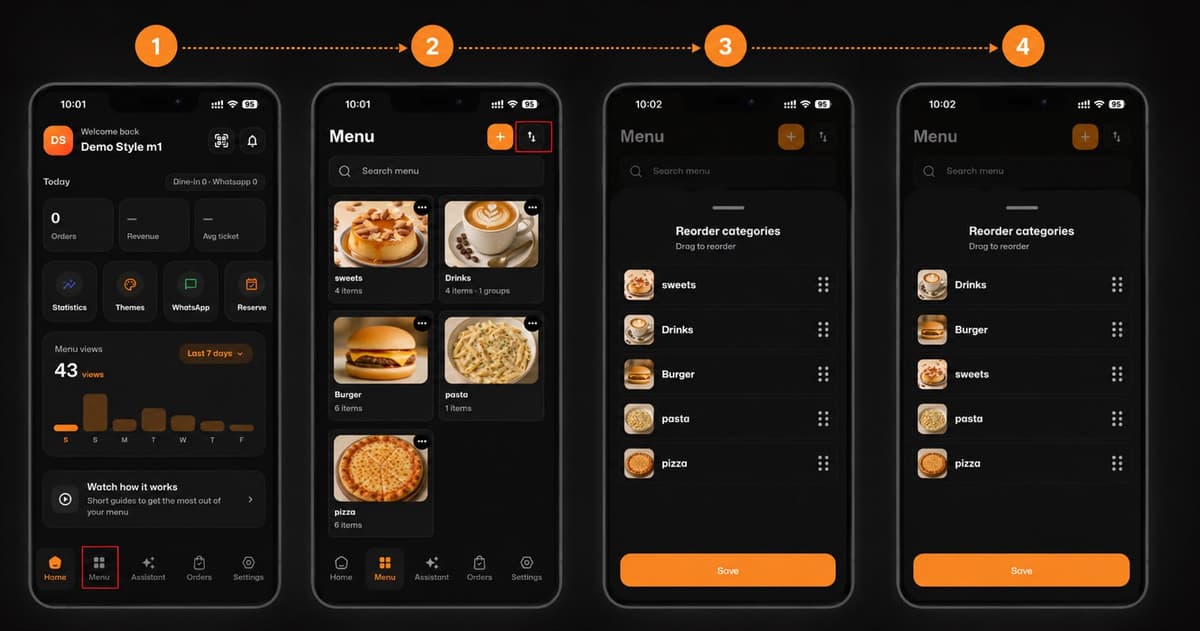
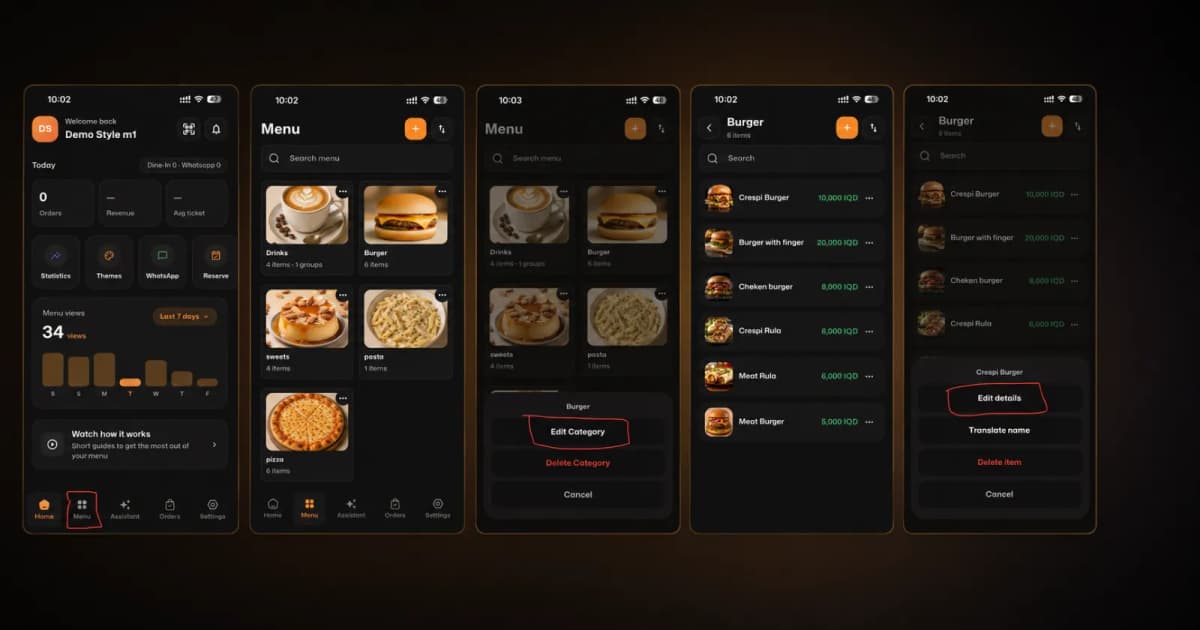
First, open the app. At the bottom of your home screen, tap on the Menu tab to view your current digital menu.
Step 2: Edit a Category
Need to update a main section like "Burger" or "Drinks"?
Find the category you want to modify.
Tap the three dots (...) in the top right corner of the category card.
Select Edit Category from the pop-up menu to make your changes.
Step 3: Edit an Item's Details
Want to change a specific dish?
Tap on a category to open its list of items.
Find the specific item (e.g., "Crespi Burger") and tap the three dots (...) next to its price.
Select Edit details from the options.
Step 4: Update Photos & Translations
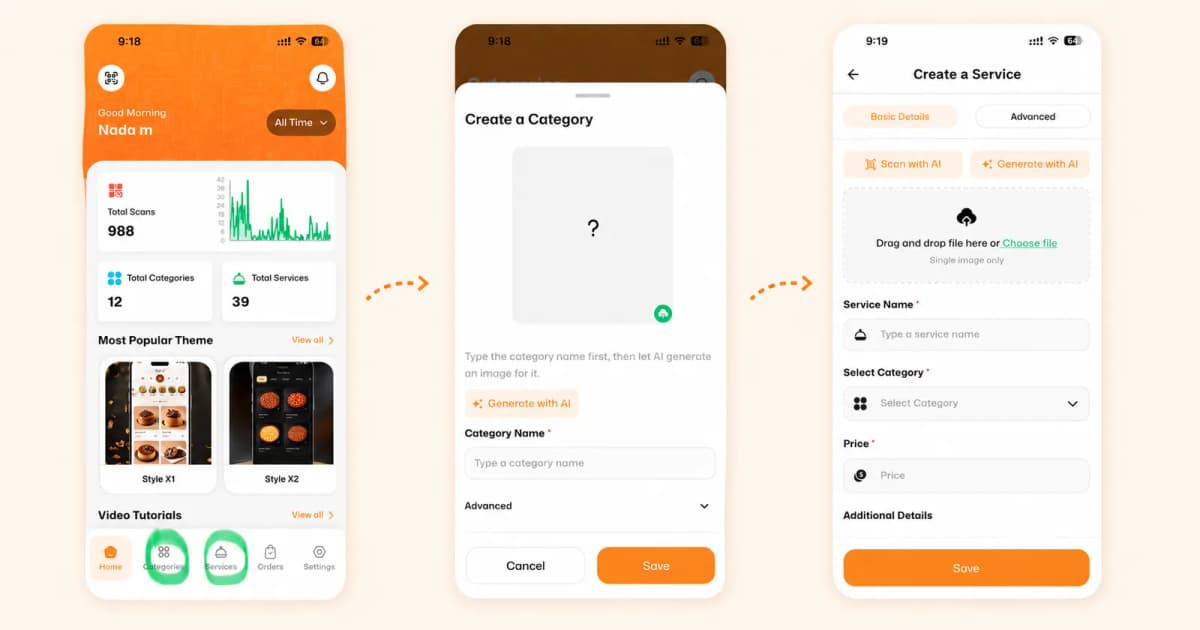
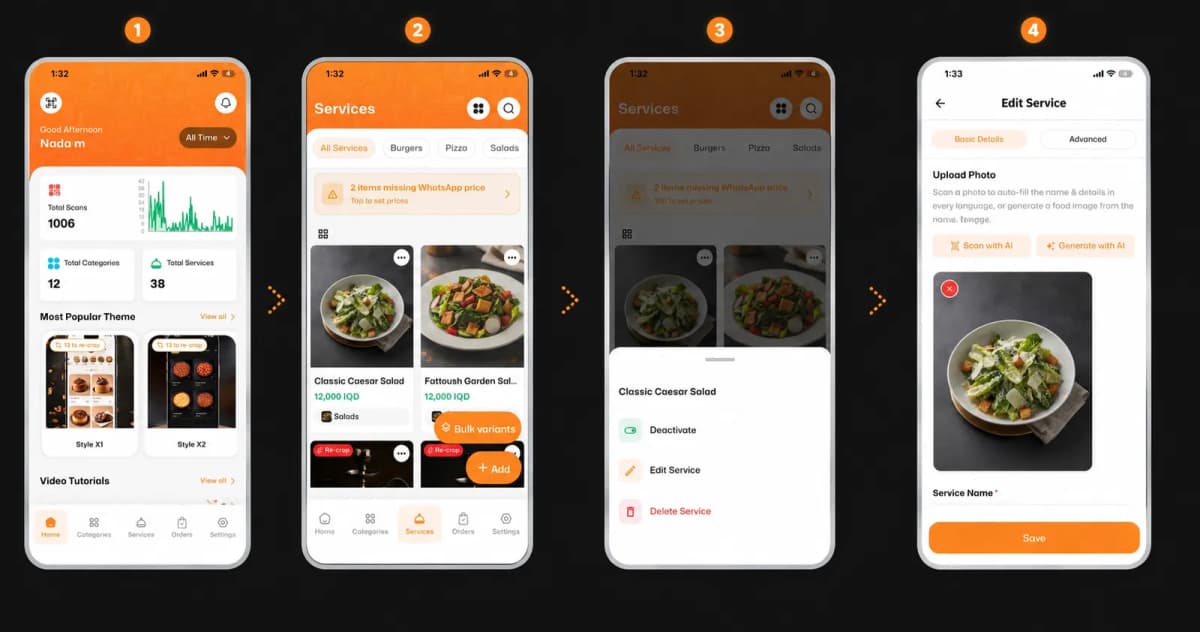
Make your items stand out! In the edit screen, you can:
Upload a new photo or generate an appetizing image using AI.
Update the Service Name in multiple languages (Arabic, Kurdish, English) so all your customers can easily read it.
Tap Save to apply your changes.
🎉 Congratulations!
Your menu is now successfully updated. Keep your customers engaged with fresh content on Get Started Now 🚀