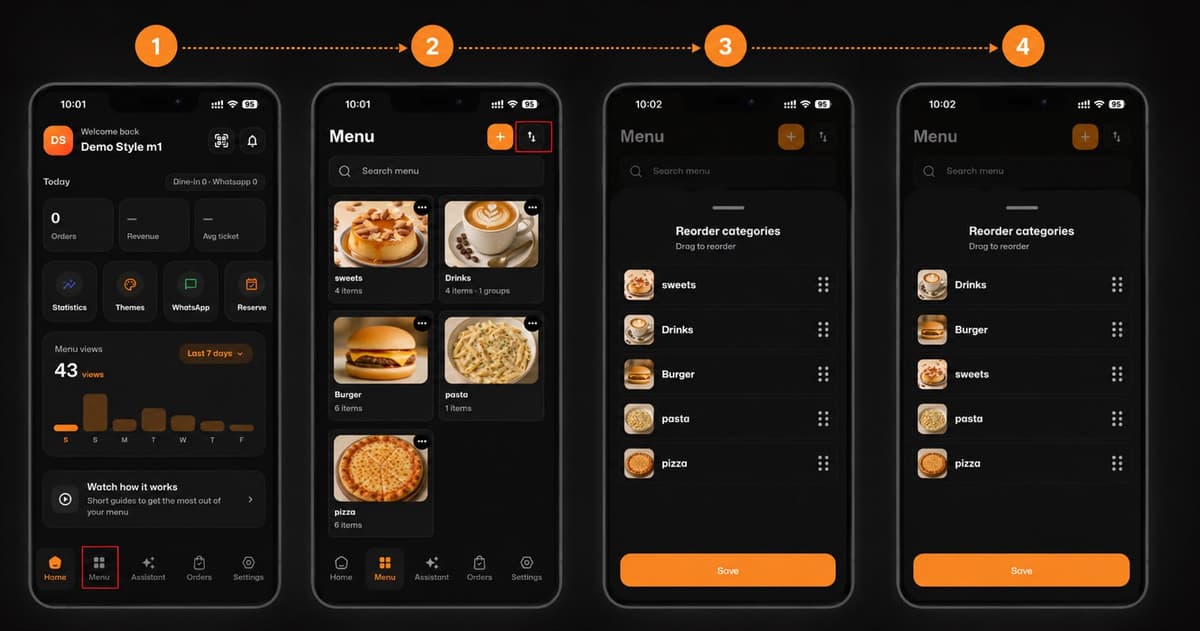
Welcome to a better way of organizing your digital menu! Rearranging your menu categories on eMenu AI is quick, simple, and takes just a few seconds. Follow these 4 easy steps to customize your layout:
*This smart link automatically redirects you to the Apple App Store, Google Play, or Web App based on your device.
Step 1: Go to the Menu Tab
First, open the app and look at the bottom navigation bar. Tap on the Menu icon to access your items (as shown in image.png).
Step 2: Access Reorder Mode
Next, on the Menu screen, look at the top right corner. Tap the Up/Down Arrows icon to enter the reorganization mode (as shown in image_2.png).
Step 3: Drag to Reorder
Now you are on the "Reorder categories" screen (image_3.png). To move a category:
Tap and hold the six dots on the right side of the category you want to move.
Drag it up or down to place it exactly where you want it.
Step 4: Save Your Changes
Once you are happy with your new layout (image_4.png), tap the orange Save button at the bottom of the screen.
🎉 Congratulations!
Your menu categories are successfully reorganized. You are now providing an even better browsing experience for your customers on eMenu AI!