Stay on top of your business and never miss an update! Customizing your notifications on eMenu AI is quick and ensures you get exactly the alerts you need. Follow these 3 easy steps to set up your preferences:
*This smart link automatically redirects you to the Apple App Store, Google Play, or Web App based on your device.
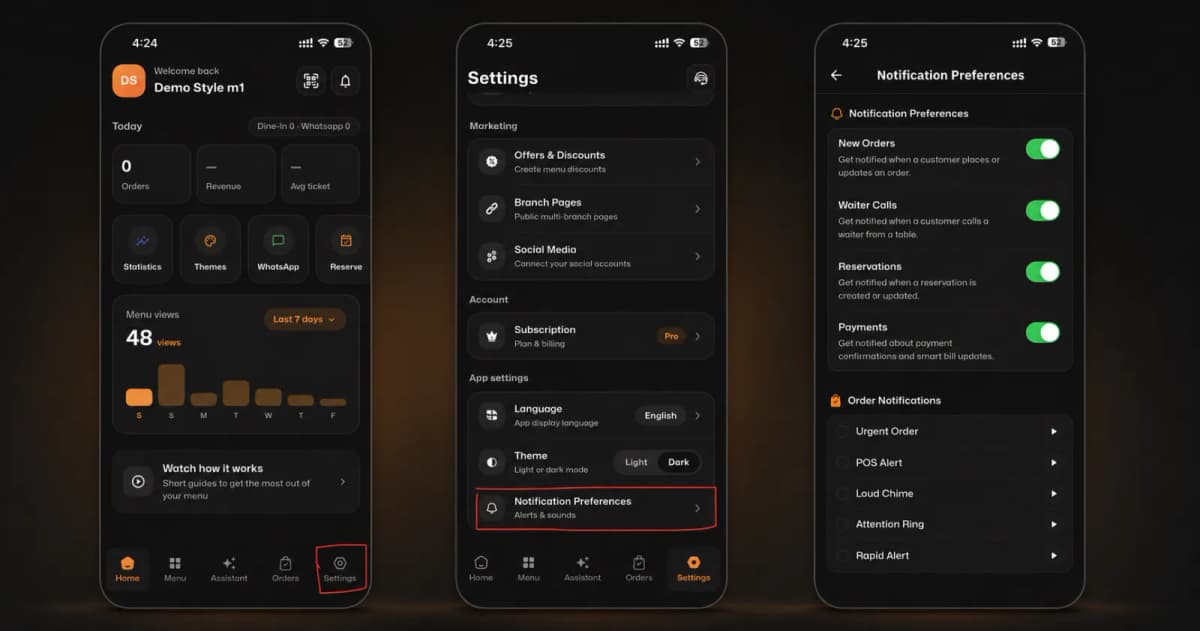
Step 1: Go to Settings
First, from your main dashboard (Home), look at the bottom menu bar.
Tap on the Settings icon located in the bottom right corner of the screen.
Step 2: Access Notification Preferences
Next, you will need to find the app alerts section.
Scroll down to the App settings section.
Tap on Notification Preferences (Alerts & sounds).
Step 3: Customize Your Alerts
Now it’s time to make it yours! Customize your app notifications by toggling switches on or off for:
New Orders: Get notified when a customer places or updates an order.
Waiter Calls: Get notified when a customer calls a waiter from a table.
🎉 Congratulations!
Your notification setup is complete! You are now ready to stay instantly informed and provide a faster customer experience with eMenu AI!