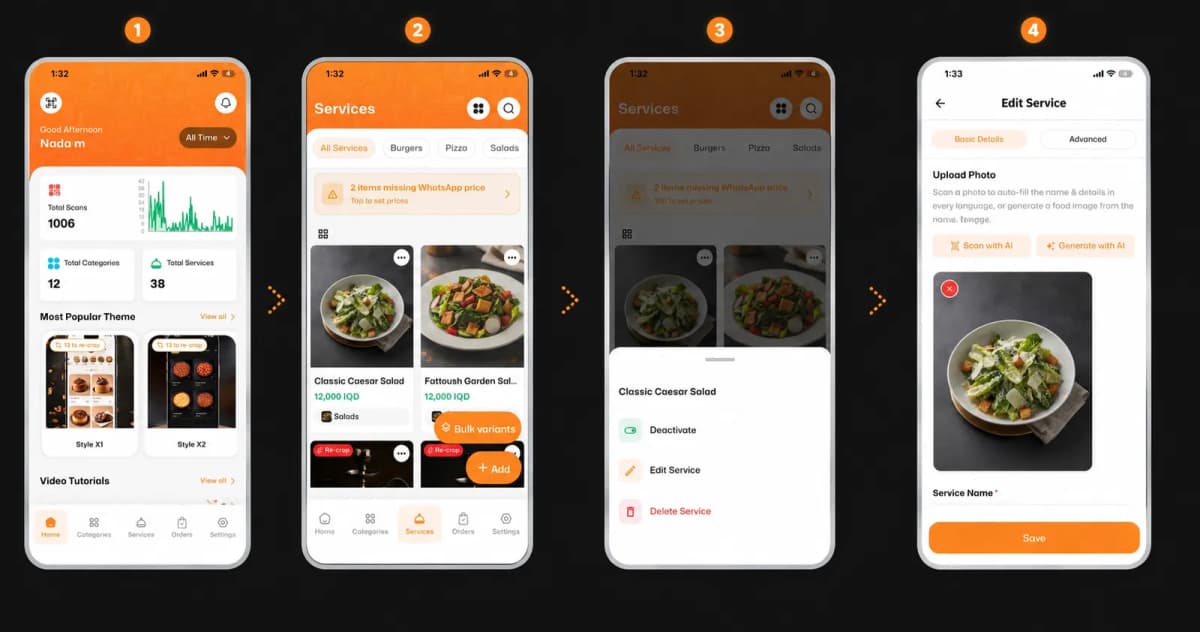
Keeping your digital menu up to date is crucial for your business! Editing your existing offerings on eMenu AI is quick, simple, and takes just a few taps. Follow these 4 easy steps to update your menu items:
*This smart link automatically redirects you to the Apple App Store, Google Play, or Web App based on your device.
Step 1: Go to the Items Menu
First, open your eMenu AI app and look at the navigation bar at the bottom of your screen. Tap on the Items icon to view your current menu catalog.
Step 2: Select the Item to Edit
Browse through your list of products. Once you find the specific dish or service you want to update (like the salad shown in the example), tap on the three dots (...) located at the top corner of that item's card.
Step 3: Choose the Edit Option
A quick-action menu will pop up from the bottom of your screen. From this list, tap on the Edit Service option next to the pencil icon.
Step 4: Make Your Changes and Save
You are now on the editing screen! Here you can modify the core details of your item to make it perfect:
Update the Image: Upload a new photo, scan with AI, or generate a fresh image using AI.
Change the Name: Edit the title of your item
Modify Details: Switch to the advanced tab if you need to adjust prices or descriptions.
Once you are happy with your updates, simply tap the orange Save button at the very bottom of the screen.
🎉 Congratulations!
Your item has been successfully updated, and your digital menu will reflect these changes instantly. You are all set to keep providing a fresh and accurate experience for your customers!