Welcome to the future of dining and business management! Setting up WhatsApp ordering on eMenu AI is quick, simple, and takes just a few minutes to connect directly with your customers. Follow these 4 easy steps to get started:
*This smart link automatically redirects you to the Apple App Store, Google Play, or Web App based on your device.
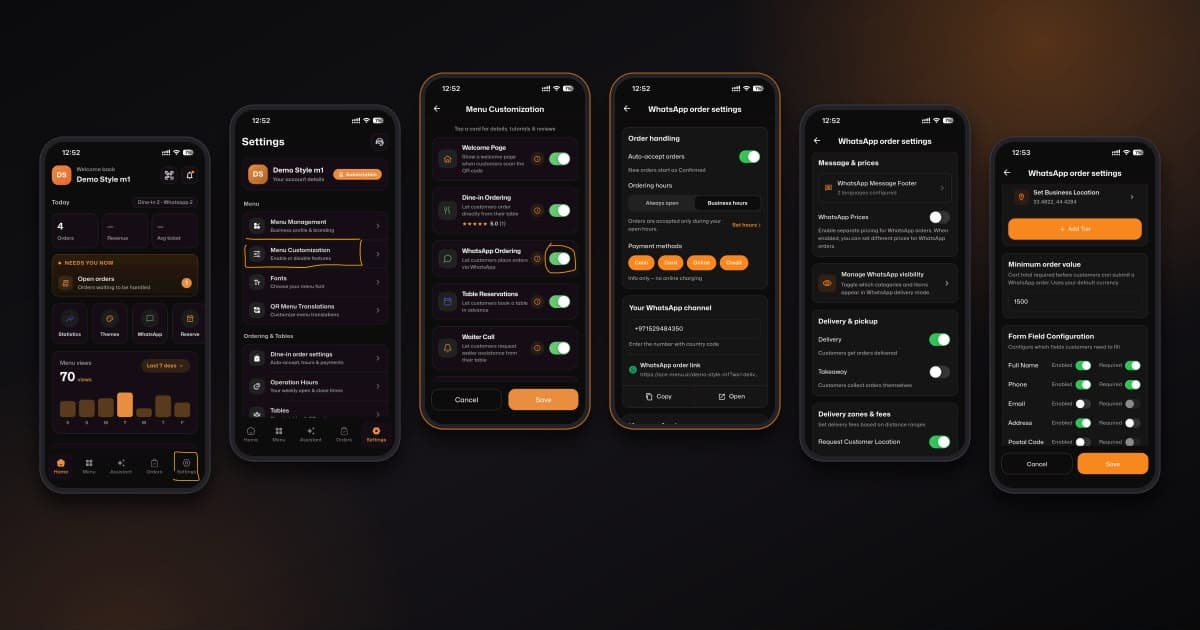
Step 1: Go to Settings & Customization
First, open your app and navigate to your account controls:
Tap on the Settings icon at the bottom right corner of the screen.
From the list, select Menu Customization.
Step 2: Enable WhatsApp Ordering
Next, turn on the feature to start receiving orders:
Scroll until you find WhatsApp Ordering.
Toggle the switch to turn it on (make sure the button turns green!).
Step 3: Configure Your WhatsApp Details
Now it’s time to connect your specific business details:
Enter your business phone number in the Your WhatsApp channel section. Important: Remember to include your country code!
Customize your delivery options by toggling Delivery (if you deliver to customers) or Takeaway (if they pick it up).
You can also turn on Request Customer Location for accurate deliveries.
Step 4: Finalize Order Requirements and Save
Make sure you get all the information you need from your customers:
Set a Minimum order value (e.g., 1500) so customers reach a certain amount before ordering.
Under Form Field Configuration, enable and make required the fields you need, such as Full Name, Phone, and Address.
Tap the orange Save button at the bottom to apply your changes.
🎥 Watch the Registration Tutorial
Need a visual guide? Watch this quick video to see How to activate WhatsApp orders on the eMenu AI App: A Step-by-Step Guide
🎉 Congratulations!
Your setup is complete! You are now ready to receive direct orders via WhatsApp and revolutionize your customer experience with eMenu AI!