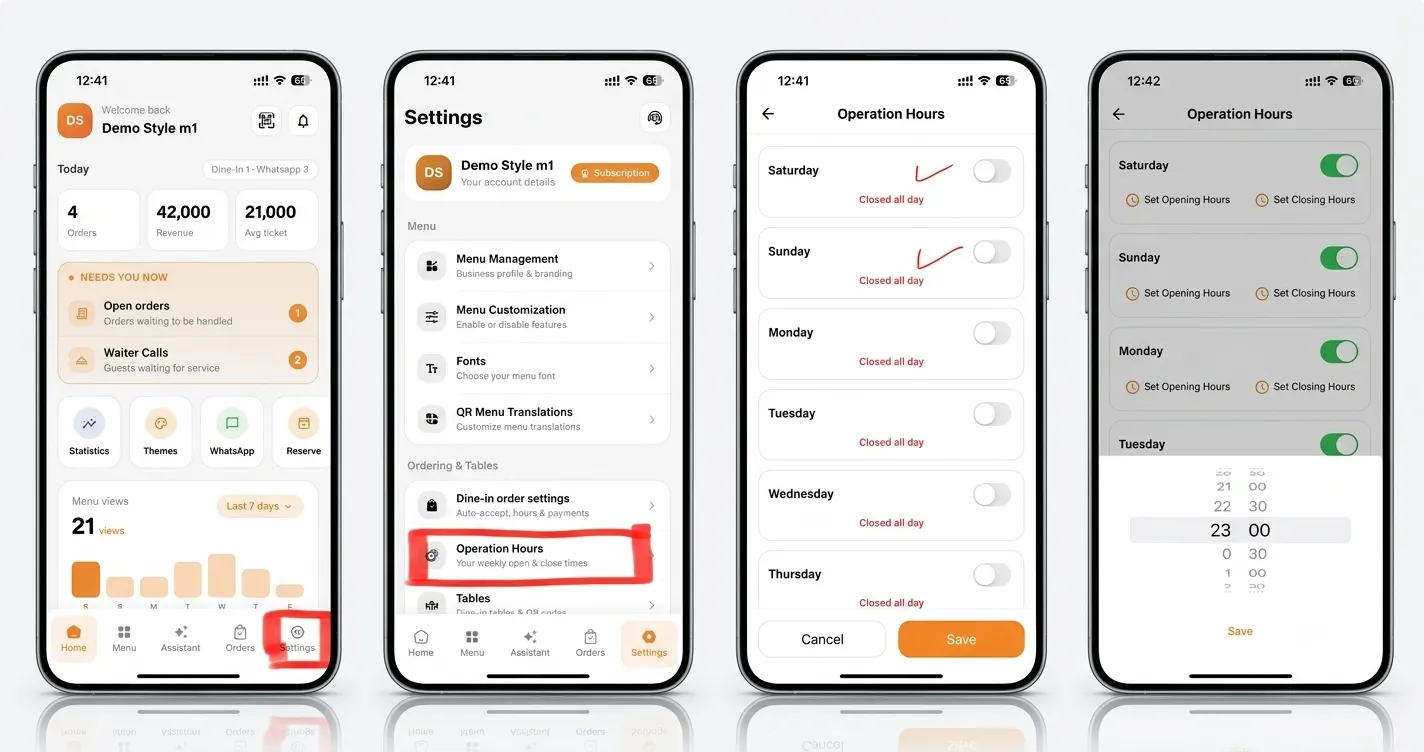
Welcome back! Managing your business schedule is crucial for keeping your customers informed and your operations running smoothly. Setting up your weekly open and close times on eMenu AI is incredibly simple. Follow these 4 easy steps to get started:
*This smart link automatically redirects you to the Apple App Store, Google Play, or Web App based on your device.
Step 1: Navigate to Settings
Open the eMenu AI app. On your main dashboard, look at the bottom menu and tap on the Settings icon located in the bottom right corner.
Step 2: Select Operation Hours
In the Settings menu, scroll down until you find the "Ordering & Tables" section. Tap on Operation Hours (Your weekly open & close times).
Step 3: Choose Your Open Days
You will see a list of the days of the week. By default, they might be marked as "Closed all day." Simply toggle the switch next to the days your business is open to activate them.
Step 4: Set Opening & Closing Times
Once a day is toggled on, you will see options to set the specific times.
Tap Set Opening Hours and Set Closing Hours.
Use the time picker dial to select the exact time (e.g., 23:00).
Click Save to confirm your hours!
🎉 Congratulations!
Your operation hours are now successfully set. Your digital menu is ready, and your customers will know exactly when you are available to serve them!